WordPress Speed Optimization: A Complete Comprehensive Guide for Better UX
WordPress Speed Optimization: If your WordPress site takes longer than three seconds to load, you are already losing visitors and revenue. Speed is not just a technical checkbox; it’s the backbone of user experience (UX), SEO rankings and conversions. Let’s dive into actionable strategies to transform your sluggish website into a speedster.
Site feeling sluggish? Optimize your WordPress website for speed to enhance user experience, engagement and conversions. Here’s how to maximize performance of WordPress Speed Optimization.
Why Speed Matters More Than Ever
A slow website frustrates users and costs you dearly. Studies show that a one-second delay in page load time can reduce conversions by 7%. Beyond lost sales, Google prioritizes fast-loading sites in search rankings, making speed a non-negotiable factor for SEO success. Think of your website as a digital storefront: if the door creaks open too slowly, customers will walk away before they even step inside.
A slow website frustrates users, increases bounce rates and reduces time on website. Studies show that a one-second delay in page load time can lead to a 7% drop in conversions and that is why WordPress Speed Optimization matters.
Speed is also very crucial for SEO—Google factors page speed into rankings, so slow websites may rank lower in search results.
Key Metrics for Measuring WordPress Speed
Track these performance indicators to optimize speed effectively for WordPress Speed Optimization:
- Time to First Byte (TTFB): Measures server responsiveness.
- First Contentful Paint (FCP): Time for visible content to appear.
- Largest Contentful Paint (LCP): Tracks load time of the most significant content.
- Total Blocking Time (TBT): Identifies delays caused by heavy scripts.
- Cumulative Layout Shift (CLS): Evaluates visual stability of page elements.
Tools for Measuring WordPress Speed
- Google PageSpeed Insights: Provides optimization suggestions.
- GTmetrix: Offers waterfall charts for detailed speed analysis.
- WebPageTest: Provides advanced performance insights.
- Chrome DevTools: Analyzes site performance within the browser.
Essential WordPress Speed Optimization Techniques
Below you can find the techniques for WordPress Speed Optimization.


1. Choosing the Right Hosting
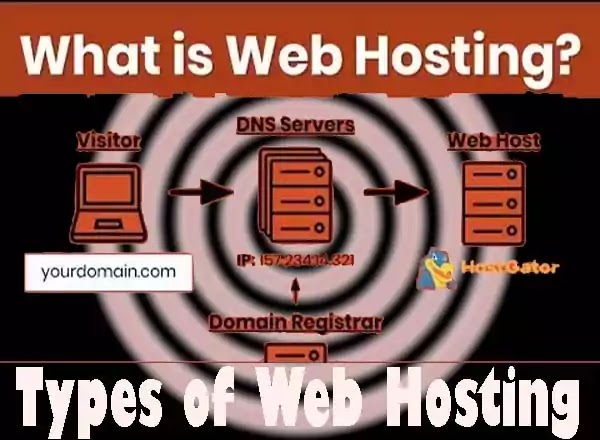
Your hosting provider sets the foundation for speed. Shared hosting may be budget-friendly but it’s like renting a room in a crowded house—noisy and slow during peak traffic. Upgrade to managed WordPress hosting (e.g., WP Engine or Kinsta) for dedicated resources, automatic caching and expert support.
Your hosting provider significantly affects website speed. Consider:
- Shared Hosting: Budget-friendly but slower.
- VPS Hosting: Better performance with dedicated resources.
- Dedicated Hosting: High performance but costly.
- Managed WordPress Hosting: Optimized for WordPress with built-in caching.
2. Implementing a Content Delivery Network (CDN)
A CDN stores copies of your website on servers worldwide, delivering content from the nearest location to your visitors. Services like Cloudflare or StackPath reduce latency and ease the load on your primary server.
A CDN distributes static content across global servers, reducing latency. Popular options include Cloudflare, KeyCDN and StackPath.
3. Optimizing the WordPress Database
Over time, databases accumulate clutter—spam comments, post revisions and transient data. Use plugins like WP-Optimize to clean up regularly, improving query efficiency and reducing load times.
Over time, databases accumulate unnecessary data. Clean it using WordPress Speed Optimization:
- WP-Optimize or Advanced Database Cleaner plugins.
- Limiting post revisions and deleting unused media/spam comments.
4. Minimizing Plugin Usage
Every plugin adds weight to your site. Audit your toolkit: delete unused plugins and replace bulky ones with lightweight alternatives (e.g., use WPForms instead of Contact Form 7). For themes, stick to speed-focused options like GeneratePress or Astra.
- Audit and remove unnecessary plugins to reduce site bloat.
- Choose lightweight alternatives to resource-heavy plugins.
5. Optimizing WordPress Themes
- Select lightweight themes like GeneratePress, Astra or Kadence.
- Optimize custom themes by removing unused code and scripts.
6. Leveraging Browser Caching
Caching plugins like WP Rocket create static versions of your pages, reducing server strain. Pair this with GZIP compression (often auto-enabled by hosts) to shrink file sizes by up to 70%.
- Enable browser caching via
.htaccessor plugins like WP Rocket and W3 Total Cache. - Store static files locally to reduce server requests.
7. Enabling GZIP Compression
Images account for over 50% of page weight. Convert files to WebP format (30% smaller than JPEG/PNG) using tools like ShortPixel. You should Implement lazy loading so your images only load as users scroll to them down.
GZIP compression reduces file sizes for faster delivery. Enable it via:
- Hosting provider settings.
- WP Rocket plugin or manual
.htaccessconfigurations.
Advanced WordPress Page Speed Optimization Techniques
1. Optimize Images
Images account for over 50% of page weight. Convert files to WebP format (30% smaller than JPEG/PNG) using tools like ShortPixel. You should Implement lazy loading so your images only load as users scroll to them down.
- You can Use JPEG for your photos, PNG for your graphics and WebP for better compression rate.
- Enable lazy loading to defer offscreen images.
- Compress images using Smush, EWWW Image Optimizer or TinyPNG.
2. Minify CSS, JavaScript and HTML
You should Remove unnecessary spaces and comments from your CSS, JavaScript and HTML files from your website with using WP plugins like Autoptimize. If your host supports HTTP/2, avoid combining files—this protocol loads multiple resources simultaneously.
- Minification removes unnecessary spaces and comments, reducing file size.
- Use Autoptimize or WP Rocket to automate minification.
3. Optimize WordPress Core
Newer PHP versions execute code faster. Most hosts allow one-click upgrades but test compatibility in a staging environment first to WordPress Speed Optimization.
- Always keep WordPress, themes and plugins updated.
- Disable unnecessary features like emojis and embeds to prevent extra script loads.
Implement Object Caching
For high-traffic sites, tools like Redis or Memcached store frequently accessed data in memory, slashing database queries.
Ongoing Maintenance
WordPress Speed Optimization is not a one-time task. Schedule monthly audits using GTmetrix to catch bloat from new plugins or content. Set up alerts via UptimeRobot to monitor downtime and always test changes in a staging environment before going live.
When to Call the Experts
If technical jargon like “TTFB” or “Redis caching” makes your head spin, partner with a professional service like Victorious. Their team handles everything from PHP upgrades to advanced database tuning and ensuring your website stays fast, secure and SEO-friendly for WordPress Speed Optimization.
Final Takeaway
Speed is the silent salesperson of your website. By prioritizing performance, you will keep visitors engaged, please search engines and ultimately drive more conversions. Start with one or two WordPress Speed Optimization today—your users (and bottom line) will thank you.
By implementing these WordPress Speed Optimization techniques, you can significantly improve your WordPress website’s speed, enhance user experience and boost SEO rankings.
You May Also Join Us On:
- You can Join Our Facebook Page for Daily Updates:
- Follow Us on Pinterest to get daily Updates:
You may also like:
- How to Use Google Trends for SEO Growth
- How to completely remove Footer area from bloggers template
- How Can You Share USB Printer and Network Printer?
- HTML to XML praser Blogger Script Code Download
- Network Sharing Error “Windows Cannot Access Your Shared Drive or Folder”
- Fix Excluded pages issues of Google Search Console
- How Can You Resolve My Computer not showing up in Network sharing issue?
- Best Local SEO Tools to Boost Local Search Rankings
- Google Search Console vs Bing Webmaster Tools: Which One Should You Use?
- How Internal Linking Can Elevate Your SEO Rankings and Conversion Rates
- What Are Featured Snippets optimization and How to Optimize in 2025?