
How to Customize the Content Area of WordPress
Customize the Content Area of WordPress: Customizing the content area of your WordPress website is very essential for creating your unique and engaging user experience. The content area is where most of your text, images, videos and other media appear, making it a critical part of your website’s design and functionality.
In this Customize the Content Area of WordPress blog post, we will explore various methods to Customize the Content Area of WordPress, using simple language and practical steps.
Understanding to Customize the Content Area of WordPress
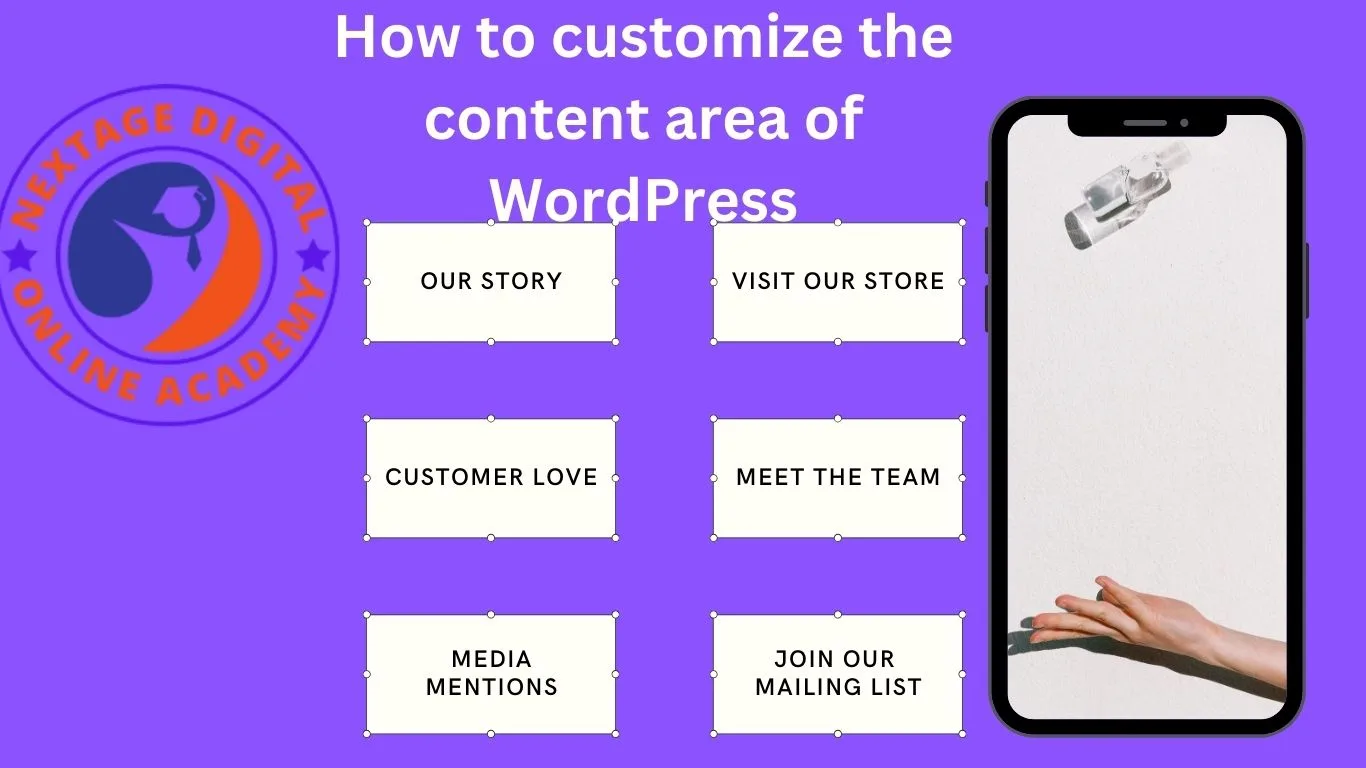
The content area in WordPress is the section where your posts, pagesand other content are displayed. This area is typically located in the center of your webpage, surrounded by the header, footerand sidebars. Customizing this area allows you to control the look and feel of your content, ensuring it aligns with your brand and enhances the user experience.
Why Customize the Content Area?
Before we dive into the how-to Customize the Content Area of WordPress, let’s discuss why you might want to customize your content area:
- Brand Consistency: Ensure that your content matches your brand’s aesthetics.
- Improved Readability: Make your website content easier to read and navigate.
- Enhanced Engagement: Add interactive elements in your website to keep your visitors engaged.
- Better SEO: Optimize your website layout and structure for search engines for ranking.
Methods to Customize the Content Area of WordPress
Now, lets disscuss the full method and tips to Customize the Content Area of WordPress.
1. Using the WordPress Block Editor (Gutenberg)
The WordPress Block Editor, also known as Gutenberg, allows you to create and customize your content using blocks. Each block can be styled and configured to fit your needs.
Adding and Styling Blocks
- Access your Block Editor: Create or edit your post or page to enter the Block Editor.
- Add Blocks: Click the “+” icon to add different types of blocks such as paragraphs, images, videos, galleries and more.
- Customize Blocks: Select your block to access its settings. You can change the alignment, color, typography and other styles.
Using Advanced Blocks
- Reusable Blocks: You can Create reusable blocks for your content you use frequently. This saves time and ensures consistency.
- Block Patterns: You can Use pre-designed block patterns for complex layouts. These patterns are available in the Block Inserter.
2. Customizing with Page Builders
Page builders are plugins that provide you drag-and-drop interfaces to create and customize your content layouts. Popular page builders include Elementor, Beaver Builder and WPBakery to Customize the Content Area of WordPress.


Using Elementor
- Install Elementor: Go to your Plugins > Add New and search for Elementor. Install and activate the WP plugin to Customize the Content Area of WordPress.
- Edit with Elementor: Create or edit your page, then click “Edit with Elementor.”
- Drag-and-Drop Interface: You can Use the drag-and-drop editor to add and customize your widgets. You can also add text, imagesbuttons, videos and more.
- Responsive Design: Customize the Content Area of WordPress for different devices, ensuring it looks great on desktops, tablets and mobiles.
3. Customizing the Content Area with Themes
Many WordPress themes come with built-in customization options for your content area. These theme options vary by theme but often include settings for typography, colors and layout.
Accessing Theme Customizer
- Go to Appearance > Customize: This opens the WordPress Customizer where you can see your live preview of your website.
- Content Options: Look for different sections like “Content,” “Typography,” or “Layout.” Adjust your settings to Customize the Content Area of WordPress.
Using Theme-Specific Features
- Page Templates: Some themes offer different page templates for various layouts. Choose your website template that fits your brand and content needs.
- Custom Widgets: Add custom widgets to the content area if your theme supports it. This can include recent posts, testimonialsor featured content sections.
4. Customizing with CSS
For more advanced Customize the Content Area of WordPress, you can use custom CSS to style the content area. This requires some knowledge of CSSbut it offers you most flexibility.
Adding Custom CSS
- Access Additional CSS: Go to Appearance > Customize > Additional CSS to add your custom CSS to Customize the Content Area of WordPress.
- Write CSS Rules: Target specific elements in your content area to style them. For example, you can change the font size, color, margins and padding.
/* Example CSS to customize content area */
.content-area {
    font-family: Arial, sans-serif;
    font-size: 18px;
    line-height: 1.6;
    color: #333;
    padding: 20px;
    background-color: #f9f9f9;
}
5. Using Shortcodes
Shortcodes are a way to add dynamic content to your posts and pages without writing code. Many plugins and themes offer you shortcodes for different features.
Adding Shortcodes
- Insert Shortcodes: You can Use the [shortcode] format in your content. You can add shortcodes directly in your Block Editor or Classic Editor.
- Shortcode Examples: Common shortcodes include galleries, contact forms, sliders and recent posts.
6. Custom Post Types and Custom Fields
For more complex content management, you can use your custom post types and custom fields to organize and display your content.
Creating Custom Post Types
- Install CPT UI Plugin: To Use the Custom Post Type UI plugin to create custom post types without coding.
- Configure Post Types: Define labels, supports and settings for your custom post type. This allows you to manage your different types of content separately.
Adding Custom Fields
- Install ACF Plugin: Use the Advanced Custom Fields plugin to add your custom fields to your posts and pages.
- Configure Fields: Create and configure fields such as text, images and select options. Display these fields in your content area using the provided shortcodes or PHP code.
You Can You Designing Your Home Page with Elementor?
In this Customize the Content Area of WordPress guide, we’ll also cover how to design your home page using Elementor, an intuitive page builder plugin for WordPress. This WP plugin will help you to create your visually appealing and functional home page without needing to write any code.
Steps to Design Your Home Page
- Navigate to the Edit Page Section:
- Go to the WordPress dashboard to Customize the Content Area of WordPress using Elementor.
- Navigate to Pages and select your page you want to edit (typically, this is your Home page).
- Click on Edit options below appearing section.
- Page Layout Adjustments:
- In your edit page section, scroll down to your content layout options.
- Set your content layout to 100% Full Width to utilize the entire width of the page.
- Ensure that margins are disabled for a seamless edge-to-edge design.
- Disable your display of the title to remove the default page title.
- Click on the Update button to save these helding settings.
- Launch Elementor:
- After updating your page settings, click on Edit with Elementor option to Customize the Content Area of WordPress.
- This action will open your installed Elementor editor, where you can visually design your page.
- Elementor Interface Overview:
- The Elementor editor provides you a variety of widgets and elements such as columns, headings, images and text editors.
- You can drag and drop these elements onto your web page to create your desired layout.
- Adding Elements to Your Page:
- Columns: Click on the “+” icon to add a new section. Choose your column structure that fits your design needs.
- Headings: Drag the Heading widget to your column. Customize your text, font, color and alignment.
- Images: Drag your Image widget to a column. Upload here your image or choose anyone from your media library accordingly.
- Text Editor: Drag the Text Editor widget to a column. Add and style your text content.
- Buttons: Add call-to-action buttons by dragging your Button widget. Customize the text, link and style.
- Customizing the Design:
- Use your Style tab in each widget to customize colors, fonts and other design elements.
- Adjust your spacing and padding in the Advanced tab for precise layout control.
- Preview and Publish:
- Use the Preview Changes button to see how your page looks on the front end after Customize the Content Area of WordPress.
- Once you satisfied with the design to Customize the Content Area of WordPress, click on the Publish to make your changes live.
Example Home Page Design
- Hero Section:
- About Section:
- Services Section:
- Contact Section:
Conclusion
Customize the Content Area of WordPress website is a powerful way to create your unique and engaging user experience. Whether you use the built-in Block Editor, page builders, theme options, custom CSS, shortcodes or custom post types, there are plenty of tools and methods available to suit your needs. By investing time in Customize the Content Area of WordPress, you can enhance the aesthetics, functionalityand overall impact of your website, ensuring it aligns perfectly with your brand and resonates with your online audience.
By following these steps, you can create your professional-looking home page with Elementor. The drag-and-drop functionality makes it easy to design and customize your page, ensuring it meets your needs and aesthetic preferences. If you have any specific questions or need further customization tips, feel free to ask!
Join us on Social Media Platforms:
- Join us on the Facebook page:
- Join Us on the Linkden Page:
Best Remote Desktop Software
Best Surfer Seo Alternatives
Best Web Hosting For Wordpress
Best White Label Seo Tools
Best Wordpress Backup Plugins
Best Wordpress Theme
Black Hat Seo 7 Tactics
Blogger Issues
Blogger Website Development
Blogging Course By Technohadayat
Bluehost Wondersuite Ai Website Builder
Broken Link Building Seo
Broken Link Checker How Can Find
Build Your Own Gpt
Car Dealer Seo
Charactor Counter Blogger Script
Chemted Engineering And Gas Usa
Church Management System Php Source Code
Cloud86 Review
Complete School Management System Php Source Code
Contact Us
Content Marketing
Courses
Crawled Currently Not Indexed
Create Business Email Address



