How to Reset Windows Password Forgotten Using Command Prompt
Reset Windows Password: Locked out of your Windows computer? This step-by-step guide to Reset Windows Password shows you how to reset a forgotten Windows password using CMD commands. Regain full access to your windows account safely and quickly today.
You are staring at the Windows login screen and your mind is completely blank. You have typed every password you can remember but nothing works. Being locked out of your own computer is a frustrating and stressful experience. Before you consider drastic measures like reinstalling Windows and losing your data, know that there is a solution.
How to Reset Windows Password Forgotten Using Command Prompt
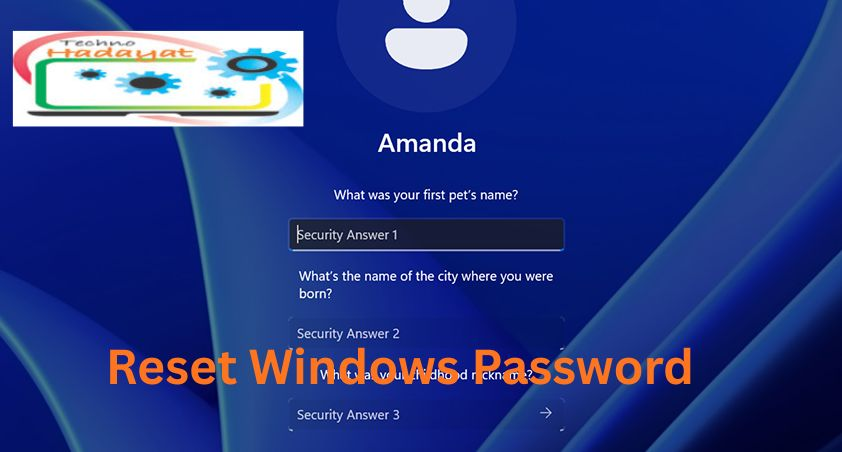
This guide to Reset Windows Password will walk you through a reliable method to reset your local Windows account password when you have forgotten it. We will use a clever technique that temporarily replaces an accessibility feature with the Command Prompt, allowing you to execute powerful commands from the login screen.
A Important Note on Security and Ethics: This method is intended solely for you to regain access to your own computer. Using this on a system you do not own is unethical and likely illegal. This Reset Windows Password technique works best for local accounts; Microsoft online accounts require a different recovery process.
What You Will Need
- A Windows installation USB drive or a system repair disc.
- The computer you are locked out of.
- Basic comfort with following technical instructions.
Step-by-Step Guide: Regaining Access to Your PC to Reset Windows Password
Follow these steps carefully to Reset Windows Password. The process involves making a small, reversible change to your Windows system files.
Step 1: Boot from Your Windows Installation Media
First, you need to start your computer from the Windows installation USB or DVD.
- Insert the Windows installation USB drive into the locked computer.
- Restart the computer.
- As the computer starts up, you must press a key to enter the Boot Menu or BIOS/UEFI settings. Common keys are
F12,F2,Del, orEsc. The correct key usually flashes on the screen during startup. - In the Boot Menu, select your USB drive as the primary boot device. In the BIOS/UEFI, find the “Boot Order” section and move the USB drive to the top of the list.
- Save your changes and exit. Your computer will now boot from your USB drive which is inserted.
Step 2: Access the System Recovery Options
- On the Windows Setup screen, select your language and keyboard preferences, then click Next.
- On the following screen, do not click “Install Now.” Instead, click the Repair your computer link in the bottom-left corner.
- This will open the “Choose an option” screen. Navigate to Troubleshoot > Advanced options > Command Prompt.
- The Command Prompt window will now open. You are ready to execute the commands that will help you regain access.
Step 3: Execute the Crucial CMD Commands
In the Command Prompt window, you will type a series of commands. The goal is to replace the “Ease of Access” button on the login screen with the Command Prompt.


First, we will create a backup of the original file. Type the following command and press Enter:
Copy C:\Windows\System32\Utilman.exe C:\Windows\System32\Utilman.exebackup This command safely creates a copy of the original Utilman.exe file so you can restore it later.
Next, we will replace the Utilman.exe file with the Command Prompt. Type the following command and press Enter:
Copy C:\Windows\System32\cmd.exe C:\Windows\System32\Utilman.exe/yparameter confirms that you want to overwrite the existing file.
Close the Command Prompt window by typing exit and pressing Enter.
Click Continue to exit the recovery environment and restart your computer. Make sure to remove the Windows installation USB so the computer boots normally from your hard drive.
Step 4: Reset Your Password from the Login Screen
Your computer will now boot to the standard Windows login screen.
- On the login screen, look in the bottom-right corner and click the Ease of Access icon (it looks like a little clock and person). Because of the command you ran, this will now open a Command Prompt window with system-level privileges.
- In the Command Prompt window, you first need to know the exact name of the user account whose password you want to reset. Type this command and press Enter: net localgroup administrators This will list all user accounts on the computer with administrator privileges. Identify your account name from the list.
- Now, to reset the password, type the following command, replacing
[account name]with your actual username and press Enter: net user [account name] * For example, if your username is “John,” the command would benet user John *. - The Command Prompt will now ask you to Type a new password for the user:. Type your new password carefully. For security, you will not see any characters (asterisks or dots) appear as you type.
- It will then ask you to Retype the new password to confirm:. Type the same password again.
- If both entries match, you will see a message stating “The command completed successfully.”
You can now close the Command Prompt window. Return to the login screen, select your user account, and type your new password to log in.
Step 5: Restore the Original System File (Very Important)
For security and functionality, you must undo the change you made to the Utilman.exe file.
- After logging in, press the Windows Key + X and select Windows PowerShell (Admin) or Command Prompt (Admin).
- In the administrator window, type the following command to restore the original file and press Enter: Copy C:\Windows\System32\Utilman.exebackup C:\Windows\System32\Utilman.exe /y
- You will be asked to confirm the overwrite; type Y for Yes and press Enter.
You have now successfully Reset Windows Password your forgotten Windows password and restored your system to its normal state. Your computer is secure and you have full access to your files and applications once again. We hope this guide on Technohadayat to Reset Windows Password helped you resolve a stressful situation and get back to work.
You may also join us on Facebook page:
- Youtube Smart Download Function
- Youtube Shorts Monetization
- Youtube Adsense Earning Update Policy
- Your Site Is Not Ready To Show Ads
- Yoast Seo Plugin
- Wondershare Filmora 11
- Windows Tools To Customize Windows
- Windows Server 2023
- Windows Server 2019 Download
- Windows 8 Pro Free Download
- Windows 7 Download Sp1
- Windows 11 Pro Incl Office 2021
- Windows 10 Pro 22H2
- Wholesale Brokers Insurance Wholesaler
- White Label Seo Software
- White Label Seo Reports
- What Is Website And How To Make It
- What Is Computers Tpm
- Website Traffic Monetization Strategies
- Ways To Increase Organic Traffic
- Ways To Get Paid To Advertise
- Ways For Online Making Money
- Video Capturing And Recording Software
- Use People Also Ask Paa For Seo
- Typing Master 10 Full Version
- Types Of Backlinks
- Turn Your Blog Into An Income Computer Machine
- Top Insurtech Companies
- Top Insurance Broker Near Me
- Top 10 Workers Comp Insurance Companies
- Tbn Best Tuber Youtube Watchtime Machine
- Some Settings Are Managed By Your Organization
- Solid Converter V10 Download
- Seo Silo Structure
- Seo Optimization By Fixing H1 Tag
- Seo For Landscapers
- Search Engine Positioning Tools
- Samsung Prime Day Deals
- Retail Seo Tips
- Remove Youtube Logo
- Putin Ally Dugin Killed
- Poweriso Crack 8 2
- Pixy Newspaper 11
- People Also Ask Seo
- Oyedad Blogger Theme
- Mistakes Avoid To Keep Adsense Safe
- Make Money From Website Traffic
- Make Money From Blogging
- Logo Design Studio Pro
- Latest Winzip Version 26 0