How to update NextGen WebP Format images in Blogger Blog?
NextGen WebP Format images are images that google developed. Google updated its search console for core Web Vitals. According to this update, websites should fully support mobile devices first.
How to update NextGen WebP Format images in Blogger Blog
If your website did not open on mobile devices and may disturb the visitors then it will be considered a core Web vital error. There are different websites ranking that have speed.
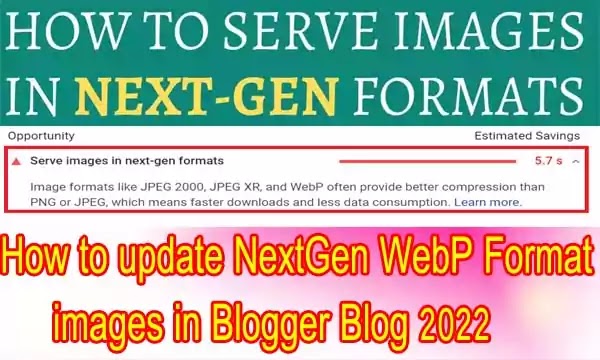
NextGen WebP
Your articles and content are 200% unique and beautifulbut if your website’s page speed is not good, everything is useless. When your website’s core vitals are poor, your site’s ranking will go down. Also, learn how to submit a website to the webmaster tools for indexing purposes.
What is Google PageSpeed Insights Tool?
Google recommend using the Google PageSpeed Insights tool to measure and diagnose your website if you sending your website to the Google search engine. PageSpeed insight tool provides different opportunities and diagnoses for your website. You may speed up your website by adopting the tool’s opportunities and suggestions.
What is a NextGen WebP Format images?
When you tested your website in PageSpeed insight, there you will see the suggestion of using the nextGen image on your website. Webp is the NextGen WebP image format which has a low size with the same pixels. Google recommend using low size images on the website. Webp format is specially designed for webs only. Webp format has a high-quality resolution with very low size.
How can insert NextGen WebP Format images in a Blogger Blog
You may use a plugin for inserting NextGen WebP images into your website. But unfortunately, there is no facility for plugins in bloggers’ blogs. But this is not meaning that you may not insert NextGen WebP images into the blogger’s blog. You may easily put these types of images into bloggers’ blogs. Bloggers’ blogs have the ability to convert your JPG, JPEG and PNG images into Next Generation images.
But the advanced layout of the blogger’s blogs directs support uploading webp images on it. You may insert NextGen WebP images into bloggers’ blogs as other images insert. But make sure that you are uploading webp images on the bloggers. Learn here to remove completely any blogger’s template footer area.

How can convert already other format images into NextGen WebP Format images in a Blogger Blog?
You already made your bloggers blog before the NextGen WebP of images updates; you have to convert these images into webp format to avoid this type of error and speed up your blogger’s blog. You have to bloggers through HTML coding that he serves your images as webp images.
Follow the manual method to inform bloggers’ blogs instead of putting heavy javascript and CSS codes which make more burdens on bloggers’ blogs. Also, seek the advanced SEO of bloggers’ blogs.
- Open your posts or page where your images are inserted.
- Click on the image and do a full-width preview.
- Now, click on HTML mode to view.
- Now, you will see your image source code there.
- Now, you will see the value like “=s16000/” there.
- You will replace this value with “=s1600-rw”
- This is the image size and you may keep any size but keep –rw attribute after its size.
- Now, update your post or page.
- Now, open that page and Download your image to your computer. You will see the Downloaded image will be into webp formate. You have successfully converted your image into webp format. Do the same process with all of your images available in the blogger’s blogs.
What are we done if the images are not converted successfully of NextGen WebP Format images?
If your images are not converted into webp format then remember that your blogger’s blogs theme or template is not supported. You have two options to solve this problem. One is simply that you changed your blogger’s blogs theme or template. But this is considered tough in most cases because of doing everything as a new one. Also must visit, How to create HTML sitemap on the blogger’s blogs?
And the second option is the code that you will insert into your current theme so that it starts to support the –rw tag for converting images into webp format. This method is easy for those who have burden a lot and have no time for changing the theme. Kindly follow the below steps to insert code into the blogger’s main XML theme.
- Open your theme in HTML view or edit HTML view.
- You have to find the bloggers function file there which is commonly found before the body tag like “replace(‘/s72-c’,’/s680′)“
- You have to replace the above mentioned code with the below code with all similar codes. It is best to use sublime editor to change all same codes at once like “replace(‘/s72-c’,’/s680-rw’).replace(‘/s72-rc’,’/s680-rw’)“
- If you don’t find the above code then you are using the free theme or template. For this free theme, you have to decode the code first then replace the above codes.
Hope you understand the webp format and converting methods into bloggers’ blogs. Kindly like and share the posts. Thanks
Fix Google Console Error Crawled currently not indexed issues on your website.
You May Also Join Us On:
- You can Join Our Facebook Page for Daily Updates:
- Follow Us on Google News to get Daily Updates:
- Follow Us on Instagram for daily Updates:
- Follow Us on Pinterest to get daily Updates:
- Join Us on Twitter to get daily Updates:
You may also like:
global listings a beginners guide
gradient color picker blogger script
header checker blogger script
high quality backlinks blogger script
how to write a great cover letter
keyword research tools blogger script
kutool for excel
make money with pay per click advertising