What is Secure Boot and how do check, enable and disable in the PCs?
What is Secure Boot and how to check in the PCs?
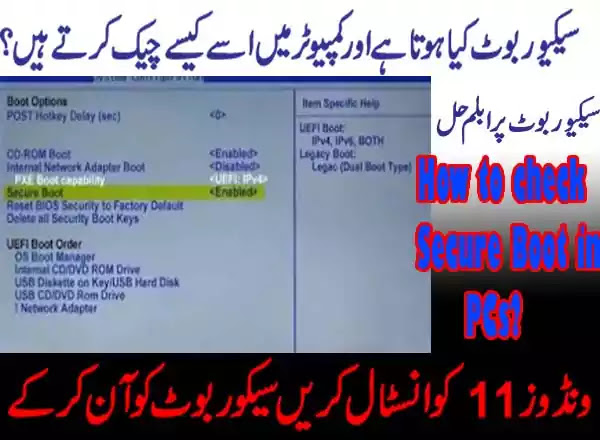
As you know all that Microsoft has released a new version of windows named Windows 11 with Secure Boot. Everyone is in hurry to install windows 11 in their system but Microsoft has kept the hardware condition to install windows 11.
These conditions are the secure boot and TPM. You should know that what is TPM and secure boot with its functions. So, in this post, I am going to detail all about secure boot and its working. In this post, you will know about secure boot and how to check and enable and disable the secure boot. You may also know What is TPM?
Secure Boot is a security feature that is found in your computer’s startup applications and software that ensures that your computer gets started safely and securely during boot time by preventing unauthorized software such as malware.
If you have windows 10 installed PC with the feature of UEFI (Unified Extensible Firmware Interface). This is the small and low-level software that helps to boot your system. So, Secure Boot is a small software of modern computers that enables the system to provide the malware attacks during boot time and startup applications. This software does not allow the un-secure operating systems and software to run on boot time and start up time.
Windows 10 stored a certificate in the UEFI system and this certificate acts as the key to allows booting. UEFI system acquires a key and has to register with UEFIwhich allows booting securely and if malware will try to install a software like a bootloader on your system to take over charge at the startupwhile this malware did not have an approved key so UEFI does not allow to run this bootloader. This is the advantage of Secure Boot in today’s systems.
Microsoft Windows has made this compulsory for their users to have this modern UEFI secure boot in their system otherwise windows 11 will not install in your system. So you can say that Secure Boot is the wall between your boot PC and outsider PCs malware. The latest secure boot of bios system is UEFI which is made for large files and PCs like servers. If this facility is not available on your PC, this will be bypassed and continue with the old default version of Secure Boot.
Watch the Video Tutorial
How to check Secure Boot in PCs?
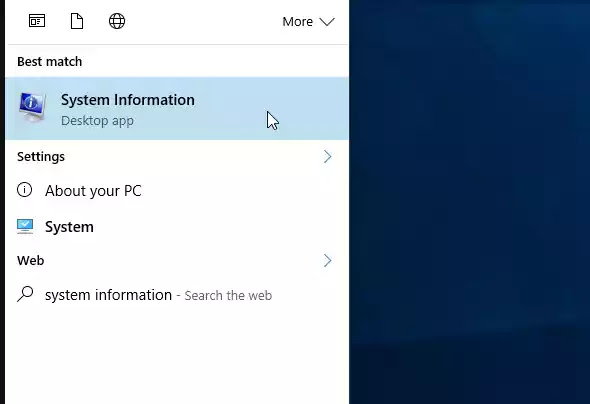
You may find the Secure Boot options in “System Information”. To check secure boot in system information type “system information” in the taskbar search bar and select system information to open.


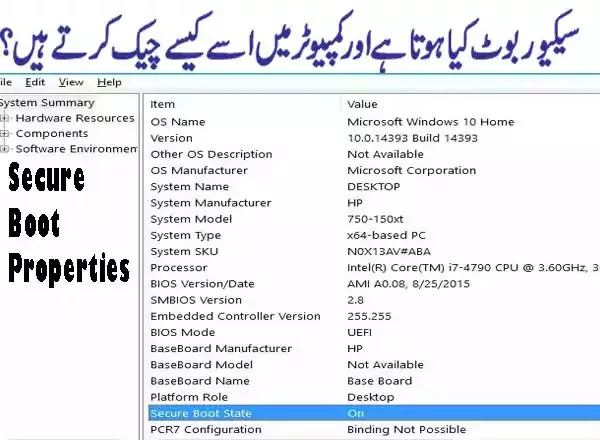
In the left panel “system summary” sees the Secure boot status. If your system has a secure boot, it will show here.
How to Enable or Disable Secure Boot in PCs in Windows 10, 8, 7?
- You have to type the “Advanced startup” in the search bar of the taskbar. Now, select the “Change advanced Startup Options” shown at the top bar of searched results.
- Now, You have to click on “Restart Now” under the “Advanced startup”. Pressing this, your system will be restarted with advanced Mode which has a lot of advanced windows configuring options.
- Now, the appeared screen, you have to click on “Troubleshooting”
- Now, select “Advanced Options”
- Select “UEFI Firmware Settings” Remember that if your system supported UEFI then this option will appear here otherwise this will be not shown.
- Once you click, the system will ask to restart system. Restart it and it will go you to the BIOS setting automatically.
- Click on the Security tab and enable or disable the secure boot by pressing arrows or up-down keys. Remember that if you have UEFI then it will be shown here otherwise not.
- Save your settings and exit it.
- You have successfully enabled or disabled the secure boot.