
How to upgrade to Windows 11 without TPM and Security Boot?
How to install or upgrade Windows 11 any Windows (7, 8, 8.1and 10) to Windows 11?
We will cover the following topics in this article how to upgrade to Windows 11.
- What are the new features of Windows 11?
- What is the minimum system requirement for Windows 11?
- How to upgrade the current version of Windows 10 to Windows 11?
What are the new features of Windows 11?
- It has centred the icons at the taskbar, finished up the tray areaand it has a new Start button and menus.
- It has rounded corners throughout Windows 11 which gives an attractive user interface.
- It has Windows Widgets to reach easily on everything.
- Windows 11 has new snap controls which are found in the maximize the button to layout your apps and windows quickly.
- Windows 11 Microsoft play store has a speedy opening compared with previous versions of Windows.
- It has an improved version of the Xbox in Windows 11.
- It has improved security by using the TPM hardware and firmware.
- It has the facility to run mobile apps without 3rd party software. Just install .apk and run easily. Wao great
What is the minimum system requirement for windows 11 to upgrade to windows 11?
Welcome to the blog today we will upgrade any Windows to Windows 11 and secondly will install a fresh copy of Windows 11 in the system with minimum requirements and without minimum requirements. Then, we will register Windows 11 with KMS. First of all, you have to need to check your current system compatibility to install Windows 11.
Visit the official software to check your system compatibility with Windows 11.
| CPU | 1GHz or faster |
| Memory | 4 GB RAM |
| Storage | 64 GB or larger storage device |
| Graphics card | DirectX 12 compatible graphics / WDDM 2.x |
| Display |
Greater than 9″ with HD Resolution
Internet
Microsoft account and internet connection required for setup files to upgrade to Windows 11 Home
TPM

Trusted Platform Module (TPM) version 2.0
System firmware
UEFI, Secure Boot Options
There is no difference in system requirements from the previous versions of Windows. But TPM and system firmware is made necessary in this version of Windows. These are both the security of the system which will save you from outsiders’ attacks. Read more about what are TPM and Firmware.
How to upgrade to windows 11 the current version of Windows to windows 11?
Watch the full tutorial on Windows 11 installation and upgrade to Windows 11
To upgrade to Windows 11 any Windows whether it is Windows 7, 8, 8.1or Windows 10 to Windows 11 as upgrading the current version of your operating system or a fresh copy follow the procedure.
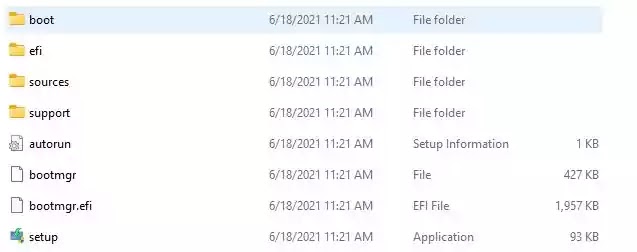
First of all, you have to the Windows 11 ISO file into your system. Extract it into a D drive or any other drive except a C drive.
After Downloading the Windows 11 ISO file, you have to Download the ISOtoUSB software to make a bootable USB. Learn how to make a bootable USB.
Now, this small file (73kb) and paste this file into the Source folder of extracted Windows 11 ISO file. Remember to paste this file into the source folder only. This file will bypass the minimum requirements of upgrading to Windows 11 if your system is not supported the TPM 2.0 and Secure Boot options.
Click on the Setup.exe file of extracted Windows 11 folder to run the setup of Windows 11.
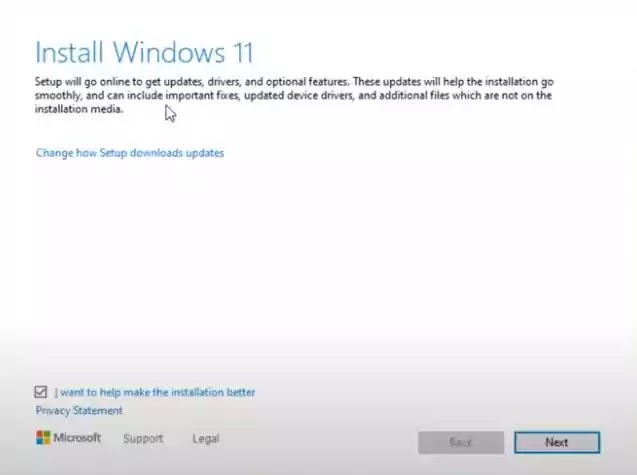
The run setup will appear on the first page, click the “Next” button to continue the process.
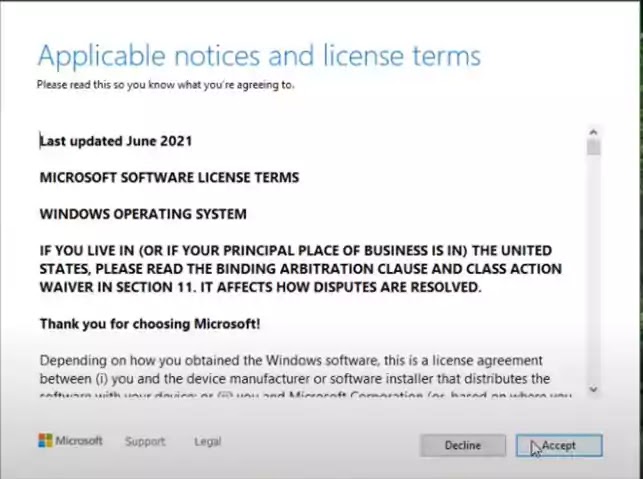
A license agreement screen will appear, click on “Accept”
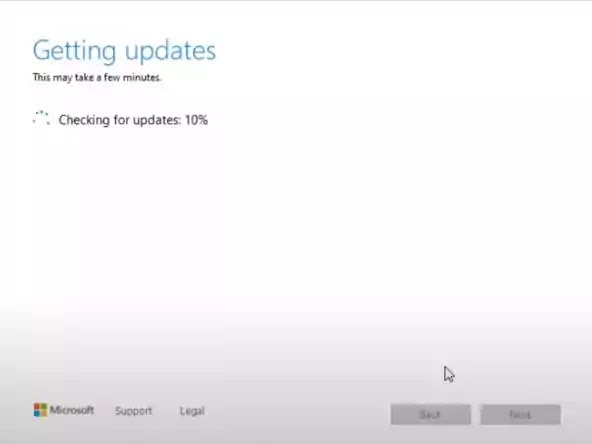
Setup will start to update the Windows files. Getting updates to 100%.
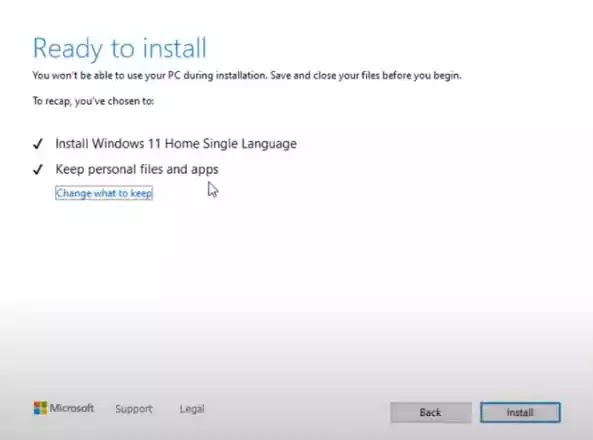
The ready-to-install page will appear with Windows 11 installing the package. Also remember that there will show your previous versions of Windows files, asking whether to keep them or not. Tick on “Keep personal files” or if you want to change the settings, click on Change the what to keep and do settings. After ticking or settings, click on the “Install” button.
Setup will start to copy the files and will restart the PC.
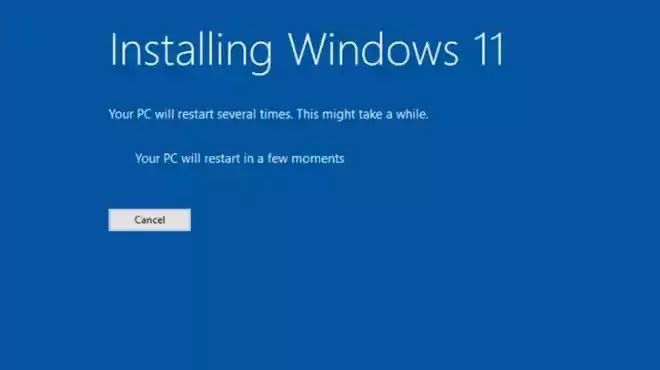
After restarting the system, updates on files will be doneand remember your PC will be restarted 2 to 3 times during installation. One will be on 30% and the second on 70%while the third will be on completing the process.
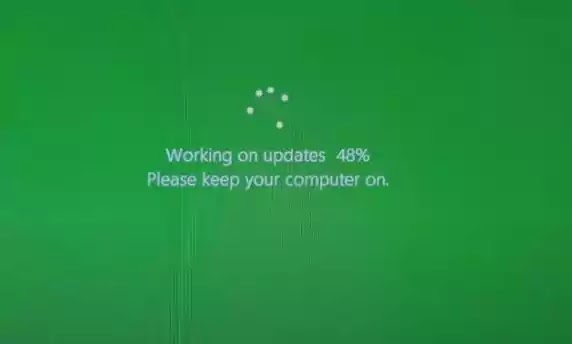
Patience while the first screen appeared. Do your settings and your desktop will be in front of you with wonderful sound.
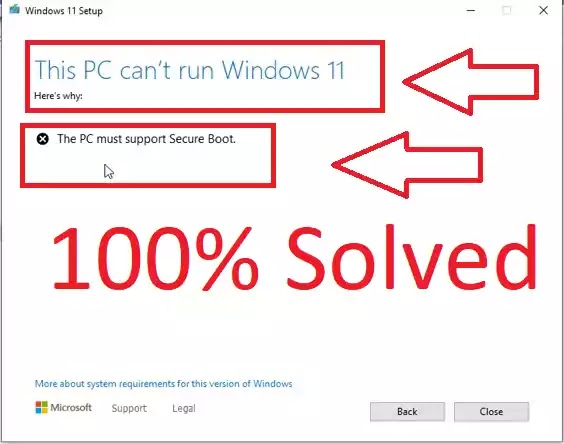
If your system meets the minimum requirements, it will start to install and upgrade to Windows 11 without any error. If your system has 4 GB of RAM and TPM enabled then there will be no error occurring and Windows 11 will be installed correctly. Windows 11 installation procedure is the same as the previous Windows installation.
You may install a fresh copy of Windows 11 by this procedure on the Ready to Install step. But you may install This windows installation by starting the PC and by booting from a bootable USB. It’s your choice which one you choose to install Windows 11 or upgrade Windows 10 to upgrade to Windows 11.
You May Also Join Us On:
- You can Join Our Facebook Page for Daily Updates:
- Follow Us on GoogleNews to get Daily Updates:
- Follow Us on Instagram for daily Updates:
- Follow Us on Pinterest to get daily Updates:
- Join Us on Twitter to get daily Updates:
You May Also Like the Recently Updated Posts:
- how to add calling features to the bloggers
- how to add pages in wordpress
- how to categorize posts
- how to connect domain to blogger
- how to connect godaddy domain to blogger
- how to create a subdomain in cloudflare and connect with blogger
- how to create blog pages for free
- how to create hire me page in wordpress


