Moving Contacts List from Microsoft Excel to Any Android 2025
Moving Contacts List from Microsoft Excel to Any Android phones for saving contact numbers into the mobile phones for usage. Hello guys, this post is about the procedure to move and shift all your contacts lists which are available in excel form to android. This is very tough and time-wasting if you start to type contacts on mobile one by one.
Read this post very carefully and challenge you will be able to move thousands of excel contacts to android phones and Moving Contacts List from Microsoft Excel to Any Android. Actually, a computer-typed contact list may not understand by an android phone and may need some process so that a computer excel contact list may understand by mobile. Excel has another format extension that is not considered by the android system.
Moving Contacts List from Microsoft Excel to Any Android
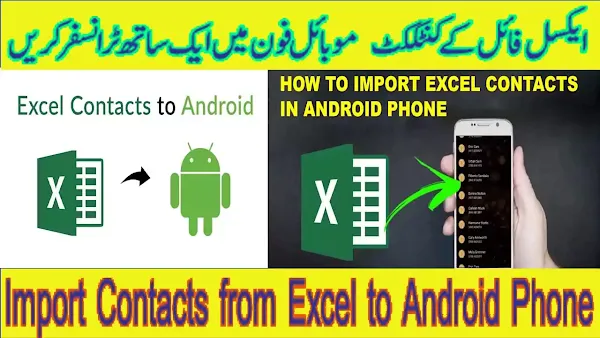
Android mobile phones are understood and support the vCard format and the .vcf file format for the contacts. This post will show you all the processes to convert excel contacts into android mobile phones. let’s start now for Moving Contacts List from Microsoft Excel to Any Android.
Importing Contacts list from Excel to any Android or
To complete the process of transferring Excel contacts to Android smartphones and Moving Contacts List from Microsoft Excel to Any Android phones completely, you have to do the five major steps. Kindly execute these steps sequentially and very carefully.
- The type contact list in excel if you already do not have one.
- Convert the excel file into. CSV format
- Extract the. CSV format file into windows contacts
- Export windows contacts file into vCard file format
- Merge all multiple VCF files to one VCF file
- Import vCard format file to Android Phone
Type the contact list in excel if you already do not have one.
First of all, you should have a contact list in excel file format for the purpose of Moving Contacts List from Microsoft Excel to Any Android. Every organization has its employee’s data in a format like a server and a database. Convert them into excel format in this condition. If not, you have to type it in excel. You have to do the following.
- Open excel software.
- Name the columns like serial number, name, contact number and any other details which you want.
Convert the excel file into . CSV format
After typing contacts in excel you need to convert it into .csv format for Moving Contacts List from Microsoft Excel to Any Android. You will convert it to the same software.
- Open your Excel workbook sheet on your computer.
- Click the Office icon from the top on the left side and choose “Save As” and select Other Formats.
- Now, you have to select Save as type as CSV (Comma delimited) option and click on the “Save” button.
- Click the “OK” button to save only the active sheet if a message appeared.
- Click the “Yes” button to save the selected workbook in the same format if a second text message screen appeared.
Extract the. CSV format file into windows contacts
Now, you need to import the contacts CSV file into the windows contact form. Windows contact format is the contact format that considers only windows. Learn to send mobile files to a computer without a data cable using WiFi.
- Click on the Windows logo button on the desktop and search contacts in the Search Box. Click on Contacts under the Programs appearing list.
- The Contacts window will be opened.
- Now, select the “Import” tab from the top.
- Select CSV (Comma Separated Values) from the list and press the Import button.
- Click on the “Browse” button and select the CSV contact file which you save as from excel to CSV format.
- To add the CSV file Click “Open”.
- The CSV file will be displayed in the edit box. Now, Click on the “Next” button.
- Now, you have to map the columns of the CSV file to windows contact appropriately. Name field with name and other fields from the list. Map all the fields in the same manner.
- All the CSV file is converted into windows contacts and will be displayed in windows. This will convert each CSV row into one contact. More rows will result in more contacts.
Export windows contacts file into vCard file format
After importing all the CSV contacts to your Windows contacts, you may export them into new vCard files for Moving Contacts List from Microsoft Excel to Any Android. Remember that vCard file format or .vcf file format is the format that supports the android mobile phone.
- In the Contact window where you had performed the last task, select all the contacts by CTR+A and click on the “export” tab.
- Now this time you have to choose vCards (folder of .vcf files) from the list and hit on the “Export” button.
- Now, select the location or create a new folder in the drive and save these into the folder.
- All the windows contacts will be exported into.VCF file format.
Merge all multiple VCF files to one VCF file
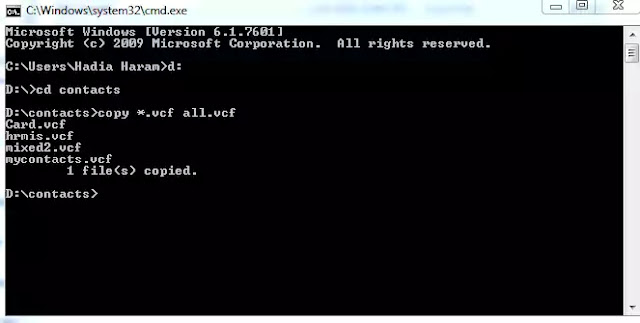
Now, you have many vCard files to which you can import to an Android phone. There will be the same contact quantity of windows contacts. You have to need to make all these many vCards files into one vCards file to Moving Contacts List from Microsoft Excel to Any Android.
If you save these many vCards files into mobiles, you have to import them into the contact list one by one. This will waste a lot of time. So, make these all vCards files into one file first then import them. We will merge these multiple vCards files into one vCard file.
- Open “Command Prompt” by searching in the windows logo.
- Type the drive where you saved the vCard file. For example, d: and hit enter.
- Now, you have to enter into the drive folder where you saved all vCard files by typing this cd folder name and hitting enter.
- Now, the final command will be typed to merge all vCard files into one vCard file. Type “copy *.vcf all.vcf” without commas and press enter.
- All vCards files will merge into one vCard file named all.vcf
Import vCard format file to Android Phone
- Connect your smartphone to a computer Select all VCF files and copy them to your mobile for Moving Contacts List from Microsoft Excel to Any Android.
- Now, Choose the Import / Export option and select Import vCard Files. You may simply click on the vCard file to import it into mobile contacts.
- Provide the location where you want to import whether phone, sim cardsor email.
- Follow the wizard accordingly on your mobile. You have completed it successfully.
Hope you successfully transfer and Moving Contacts List from Microsoft Excel to Any Android phone to save the excel contact list on mobile phones. After Moving Contacts List from Microsoft Excel to Any Android phone, you can use them for dialling purposes.
You May Also Join Us On:
- You can Join Our Facebook Page for Daily Updates:
- Follow Us on Google News to get Daily Updates:
- Follow Us on Instagram for daily Updates:
- Follow Us on Pinterest to get daily Updates:
- Join Us on Twitter to get daily Updates:
You may also like:
- online bus reservation system php source code
- our projects
- pageranks importance for seo
- pogo sticking how to prevent
- power of google keywords ranking tools
- reasons why your blog post is not ranking on google
- recover deleted web pages
- resolve microsoft office problems
- search console google fast index blogger post in a minute
- semrush pricing
- seo for publishers