
How can you Make Main Header Transparent in WordPress Elementor?
Make Main Header Transparent in WordPress Elementor: The header of a website is often the first element that your visitors see when they land on your webpage. Its design can significantly impact on your overall look and feel of the website. To Make Main Header Transparent in WordPress Elementor can add a great touch of elegance and modernity to your website’s design.
In this blog post of Make Main Header Transparent in WordPress Elementor today, we’ll explore how to achieve this effect using WordPress Elementor, a powerful page builder known for its user-friendly interface and extensive customization options today.
Why Make Main Header Transparent in WordPress Elementor?
Before we try to Make Main Header Transparent in WordPress Elementor, lets examin the causes that why we need to Make Main Header Transparent in WordPress Elementor for our website in today world.
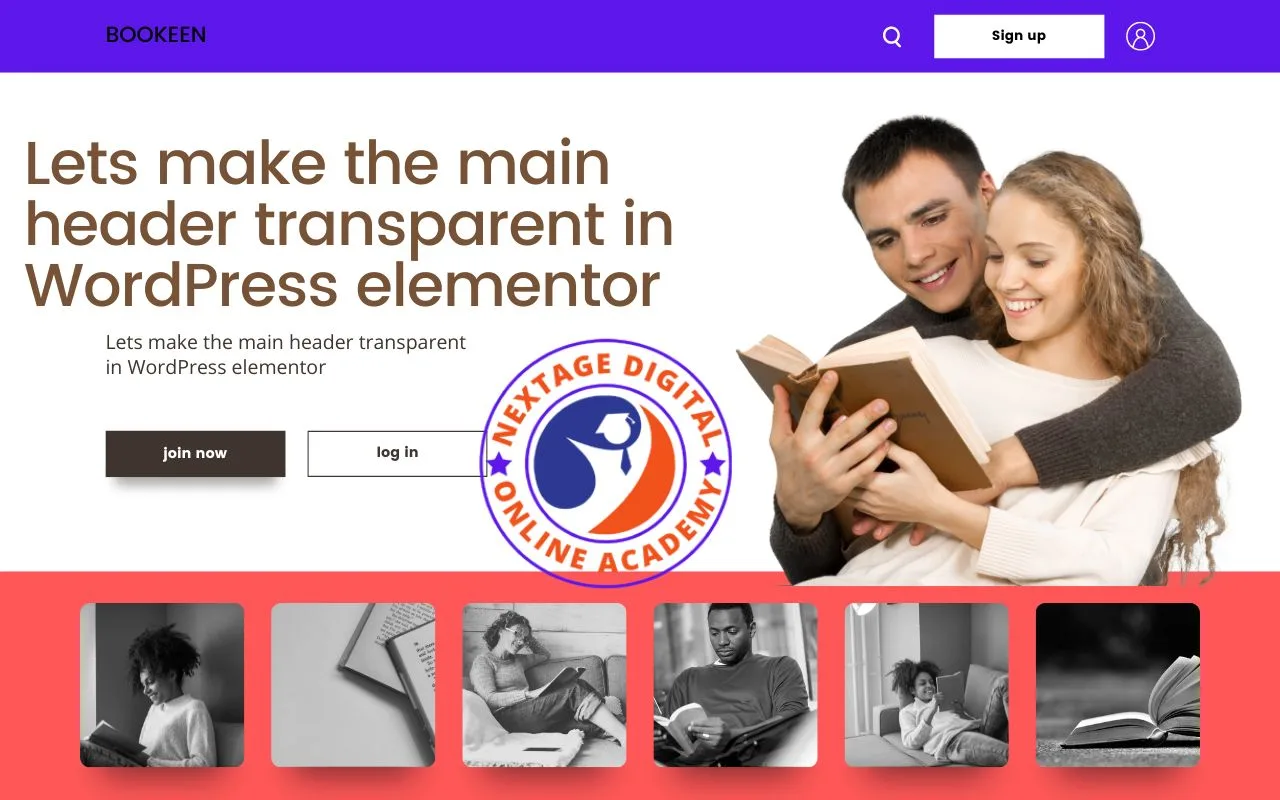
Enhanced Visual Appeal
A transparent header can create a sleek and contemporary look for your blog or website. By allowing this to background to show through, it gives your the impression of a seamless and immersive browsing experience.
Highlighting Background Imagery
If your website features are stunning background imagery or videos which making your header transparent can help you to showcase these visuals more effectively. It allows your background to take center stage while still providing you essential navigation options.
Seamless Integration with Design
A transparent header seamlessly integrates with your various design styles and color schemes. Whether your website has a light, dark or vibrant background, these transparent header can adapt and complement on your overall aesthetic.
Steps to Make Main Header Transparent in WordPress Elementor
Lets try to Make Main Header Transparent in WordPress Elementor page builder in today class on our nextagedigital education. You can also watch the full video for more information.


Method 1: Using Elementor’s Style Options
- Access your site Elementor Editor:
- Log in to your WordPress dashboard to access and Make Main Header Transparent in WordPress Elementor.
- Navigate to your page where you want to make your header transparent and click on “Edit with Elementor.” button to proceed with Make Main Header Transparent in WordPress Elementor.
- Select your Header Section:
- Identify your main header section in your opened Elementor editor.
- Access the Style Options:
- Click on your header section to select it.
- In the left panel, you can navigate to the “Style” tab.
- Adjust Background Settings:
- Under the “Background” section, you can look for options related to background color or image.
- If there is a background color, you can set its opacity to 0% to make it fully transparent.
- If there is a background image, you may need to adjust its opacity or use your transparent PNG image.
- Preview and Publish:
- Preview your changes to ensure your header appears transparent as desired.
- Click on the “Publish” to save your changes and make them live on your website.
Method 2: Using Custom CSS style
- Access your WordPress Customizer:
- In your WordPress dashboard, you have to go to “Appearance” > “Customize.” to customize your header.
- Open Additional CSS:
- Look for the below option to add custom CSS code. This is usually labeled as “Additional CSS” or “Custom CSS.” at the end of the customizer.
- Add Transparent Header CSS:
- Insert the following CSS code snippet to Make Main Header Transparent in WordPress Elementor.
.your-header-class { background-color: transparent !important; } - Replace “your-header-class” with your actual CSS class of your main header of your website.
- Preview and Publish:
- Preview your website to see these changes applied of the Make Main Header Transparent in WordPress Elementor.
- If everything looks so good, click on “Publish” to save your changes of header.
Best Practices for Using your Transparent Header
Below you may find the best practices to Make Main Header Transparent in WordPress Elementor for your website and blog.
Ensure Readability
You should Make sure that text and navigation elements in your header remain visible and readable against any background. You can Adjust font colors or add your subtle overlay if necessary to improve contrast.
Maintain Consistency
You should Keep your transparent header consistent across all pages of your website for a cohesive user experience. This Consistency helps you to establish familiarity and makes navigation easier for your visitors.
Test Across Devices
You should Check how your transparent header appears on different devices and screen sizes to ensure it maintains its visual appeal and functionality across the board.
Conclusion
To Make Main Header Transparent in WordPress Elementor can elevate the visual appeal of your website and create a more immersive browsing experience for your visitors. Whether you choose to achieve this effect through Elementor’s style options or custom CSS, this process is relatively straightforward and can be done with just a few simple steps.
By following best practices and ensuring readability and consistency, you can create a transparent header that seamlessly integrates with your website’s design and enhances its overall aesthetic. Experiment with different backgrounds and styles to find your perfect look for your website and watch as your transparent header adds a touch of elegance and sophistication to your online presence.
In this Make Main Header Transparent in WordPress Elementor video, we made several changes to enhance the look and feel of our website.
- Header Customization:
- We accessed the WP dashboard and went to the customization section.
- Changed the background color of the header to transparent for a cleaner look.
- Adjusted the link color and background color for better visibility and aesthetics.
- Menu Styling:
- Modified the menu style to improve its appearance and match the overall theme of the website.
- Updated the link color and background color to create a cohesive design.
- Section Height Adjustment:
- Increased the height of the full-width section to 600 pixels for better visual impact.
- Saving Changes:
- Ensured that all changes were saved and published to reflect on the live website.
By making these adjustments, we’ve improved the overall design and usability of our website. In the next video class, we’ll continue by adding new sections such as an about section, experience, education and more.
Join us on Social Media Platforms:
- Join us on the Facebook page:
- Join Us on the Linkden Page:
Deputy Director Jobs In Quetta
Direct And Indirect Narration
Dogars Unique Nts Guide Book Pdf 75 Edition
Drugs Testing Laboratories Punjab Jobs
Education Monitoring Authority
Effective Career Counselling Tips For Students
Eid Ul Fitar To Be Observed



