Blogger to WordPress Full Guide to Migrating Your Site
Blogger to WordPress moving and You are a blogger and make plans to move your website to WordPress. You are thinking of loos the traffic if you shift or move.
In this Blogger to WordPress Full Guide to Migrating article, we will explain why migration to your website can be beneficial and provide a step-by-step guide to help you to complete the migration process easily.
What is the reason for Migrate from Blogger to WordPress?
Blogger is considered a reliable and easy blogging platform for beginners. You may migrate your blogger to WordPress because of the limitations of the blogger in designing, SEOand coding limitations. Blogger is better for beginners but when you got expertly, you want to shift or migrate or move your website from Blogger to WordPress. Let’s cover some of its strong features.
- You have the options to choose where to host your website and you have full control over your website and hosting.
- In WordPress, there is a lot of plugins and themes, whatever you may choose according to your needs.
- In WordPress, you may easily change your websites according to your audience’s needs.
How can you Move or Migrate from Blogger to WordPress?
The following steps will be done to migrate bloggers to WordPress website.
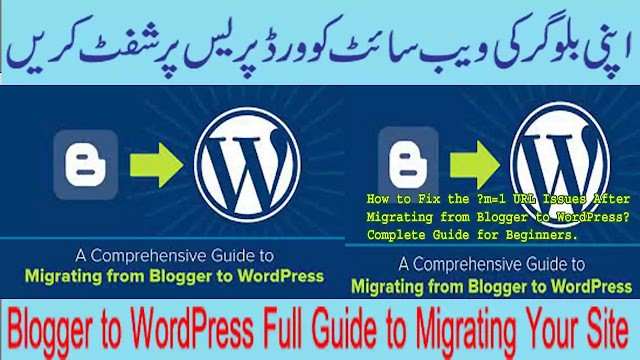
- Needs to take backup of your Blogger.
- Needs a domain and hosting for WordPress where you will keep these backup files and Installation of WordPress on your hosting plan.
- Restore or import blogger backup into newly installed WordPress.
- Installation of a plugin named “Blogger to WordPress” to redirect all pages and posts links from blogger to WordPress so that traffic may not lose during the migration process.
Let’s see and start to migrate bloggers to WordPress one by one with the help of pictures.
- First of all, you have to backup your blogger contents as a backup which you want to transfer into WordPress. Login to your account on Blogger.com from your Gmail and go to your Blogger Dashboard’s Settings.
- Go to the “Manage Blog” section from lowering right side settings and select “Back up Content”.
- When your click on the above, a popup will appearand click on “Download” which will lead you to your computer. Save the backup to your computer. The XML file will save to your computer. https://www.xxxtube1.com/categories/215/defloration
- I hope, you have already purchased the domain and hosting plan of WordPress with installation in it. Get help on how to buy domain and hosting?
- After installing your WordPress, go to your WordPress Dashboard and then go to “Tools” and click on “Import” button.
- This click will lead you to the import section of WordPress and now, Choose Blogger at first and click on “Install Now”. When a blogger’s importer is finished or installed then you have to click on the“Run Importer” button.
- Now next, click on the “Import Blogger page”button and then click on the “Choose File” button.
- Choose your Downloaded XML file of blogger which you’ve saved already and “Upload” it.
- Now, you will be on the Authors page. You have to fill in the information and then click to “Submit”. button.
- You have migrated your blog into WordPress successfully. Now, you have to redirect your all blogger traffic into WordPress. For redirections of all blogger old links and traffic, you have to Download and install the “Blogger to WordPress” plugin.
- Blogger uses day and month in its permalinks, so set WordPress permalinks in day and month. Now, After reaching out to the WordPress Dashboard, you will click on “Settings” and 2nd will choose the “Permalinks” option. In the “Common Settings” section, now, choose Month & name and hit “Save Changes”.
- Now, Download and activate the plugin “Blogger to WordPress Redirection”from the WordPress dashboard’s plugin section.
- Now, you have to go to the “Tools” tab button and then select newly installed plugin “Blogger To WordPress Redirection” plugin from the displayed lists. Now, you have to click on the “Start Configuration” button to configure it. Blog list will display and Now, press “Get Code”. Now, Copy the generated code.
- Now, you will go to the Bloggers Dashboard. Remember, There you will find the “Theme” options and click on them. Then, click on “Customize Theme” and then click “Switch to the first-generation classic theme” confirmation message will appear now click on the “ Backup and Switch” button.
- Now, In the “Edit Theme HTML” box, replace the copied code which is generated in WordPress and click on “Save theme”.
- You have successfully migrated blogger to WordPress. Take a test and enjoy.
You May Also Join Us On:
- You can Join Our Facebook Page for Daily Updates:
- Follow Us on Pinterest to get daily Updates:
You may also like:


- how to make a youtube video
- bluehost wondersuite ai website builder
- broken link building seo
- broken link checker how can find
- car dealer seo
- 750 prize bond list a complete guide to checking results and winning big
- 7 affordable seo services
- 9 best seo wordpress plugins must have everyone
- church management system php source code
- cloud86 review
- daylight saving time
- edu backlink sites list
- england women vs west indies women
- essentials before starting a blog
- file explorer alternatives
- fix apple software update problems