
How Can You Change Windows Account Type(4 Ways)
Changing the account type on Windows, whether from Administrator to Standard or vice versa, is a straightforward process that can be accomplished in multiple ways.
Here are four easy methods to achieve this:
Effortless Ways to Change Account Type on Windows
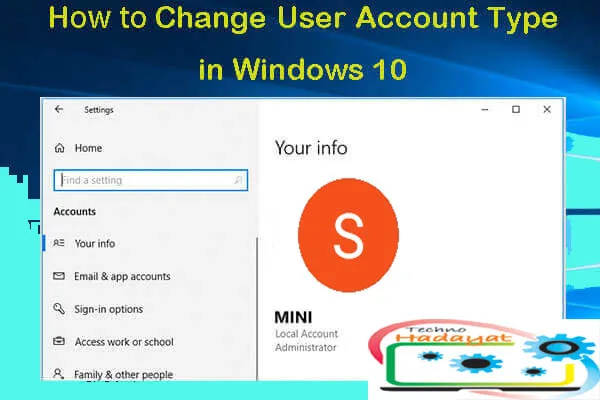
Navigating between Administrator and Standard User accounts is essential for managing access and privileges on Windows PCs. Whether you are sharing your computer with others or need to fine-tune your own permissions, understanding how to switch between these account types is crucial. In this guide, we’ll explore various methods to change account types on both Windows 10 and 11, empowering you to customize user permissions effortlessly.
1. Using Control Panel:
- Navigate to the Control Panel by typing “Control Panel” in the Windows search bar and selecting it from the results.
- Click on “User Accounts” or “User Accounts and Family Safety,” depending on your Windows version.
- Select “User Accounts” and then “Manage another account.”
- Choose the account you want to change and click on “Change the account type.”
- Select either “Administrator” or “Standard” and click “Change Account Type” to confirm.
2. Via Settings:
- Press the Windows key + I to open Settings.
- Click on “Accounts.”
- Select “Family & other users” from the left sidebar.
- Under “Other users,” click on the account you wish to modify.
- Click on “Change account type.”
- Choose between “Administrator” and “Standard” and click “OK” to save changes.
3. Using Computer Management:
- Right-click on the “This PC” or “Computer” icon and select “Manage.”
- In the Computer Management window, expand “Local Users and Groups” from the left sidebar.
- Click on “Users.”
- Right-click on the account you want to change and select “Properties.”
- In the Properties window, go to the “Member Of” tab.
- Click on “Add” to add the account to the Administrators group or “Remove” to switch it to a Standard user.
- Click “OK” to apply the changes.
4. Command Prompt or PowerShell:
- Open Command Prompt or PowerShell as an administrator.
- To change an account to Administrator type, type:
net localgroup Administrators [username] /add
Replace [username] with the name of the account. - To change an account to Standard type, type:
net localgroup Administrators [username] /delete
Again, replace [username] with the name of the account. - Press Enter to execute the command.
Understanding Administrator vs. Standard User Accounts:
Before diving into the methods, it’s essential to grasp the differences between Administrator and Standard User accounts. Administrator accounts have unrestricted access to system settings, filesand installationswhile Standard User accounts have limited privileges, unable to manage system files or install new applications. Knowing these distinctions is vital for effective user management on Windows.
Using Settings to Change Account Types:
The Settings app provides a straightforward way to switch between Administrator and Standard User accounts on Windows 10 and 11. Here’s how to do it:
- Open the Settings panel using the Windows + I shortcut.
- Navigate to Accounts > Family & other users.
- Select the desired account under Other users and click “Change account type.”
- Choose either Administrator or Standard User from the options and click OK to apply the changes.
Utilizing Netplwiz for Account Management:
Netplwiz offers a more comprehensive approach to managing user accounts, allowing for fine-tuned adjustments beyond just Administrator and Standard User roles. Follow these steps to use Netplwiz:
- Type “netplwiz” in the Start menu search bar and open the User Accounts panel.
- Double-click the target account and navigate to the Group Membership tab.
- Select the desired account group, such as Power Users or Guestsand click Apply to save the changes.
Changing Account Types via Control Panel:
While less commonly used, the Control Panel still provides a viable method for adjusting account types. Here’s how to do it:


- Search for “Control Panel” in the Start menu and open it.
- Select “Change account type” under the User Accounts section.
- Choose the account and click “Change the account type.”
- Select the desired option (Administrator or Standard User) and confirm the changes.
Using Command Prompt for Quick Changes:
For advanced users comfortable with command-line interfaces, Command Prompt offers a swift method to change account types. Follow these commands:
- Open Command Prompt as an administrator.
- To grant Administrator privileges, use the command “net localgroup administrators [USERNAME] /add.”
- To switch to Standard User, use the command “net localgroup administrators [USERNAME] /del.”
Conclusion:
With multiple methods at your disposal, changing Administrator or Standard User accounts on Windows has never been easier. Whether you prefer the simplicity of the Settings app or the flexibility of Netplwiz, each approach offers unique benefits. By mastering these techniques, you can efficiently manage user permissions and tailor access to suit your needs.
Changing the account type on Windows is a simple task that can be done through various methods, including Control Panel, Settings, Computer Managementand Command Prompt/PowerShell. Whether you need to grant administrative privileges or restrict access, these methods provide you with the flexibility to manage user accounts efficiently. Choose the method that suits your preference and enjoy enhanced control over your Windows system.
You May Also Join Us On:
- You can Join Our Facebook Page for Daily Updates:
- Follow Us on Pinterest to get daily Updates:
You may also like:

