How to Fix Error 0x00000709 on Windows 2025
You might be received and met with a popup error alert with the name “Operation couldn’t be completed (error 0x00000709). This type of error 0x00000709 actually prevents and stop you from set your newly installed printer as default and your present installed printer as your default printer in windows 7, windows 8, windows 10 and Windows 11.
Today in the current post and article, we will Fix Error 0x00000709 on your windows with different methods. You will have to follow all methods and anyone will work for you.
Why My Printer does not set as Default Printer due to error 0x00000709
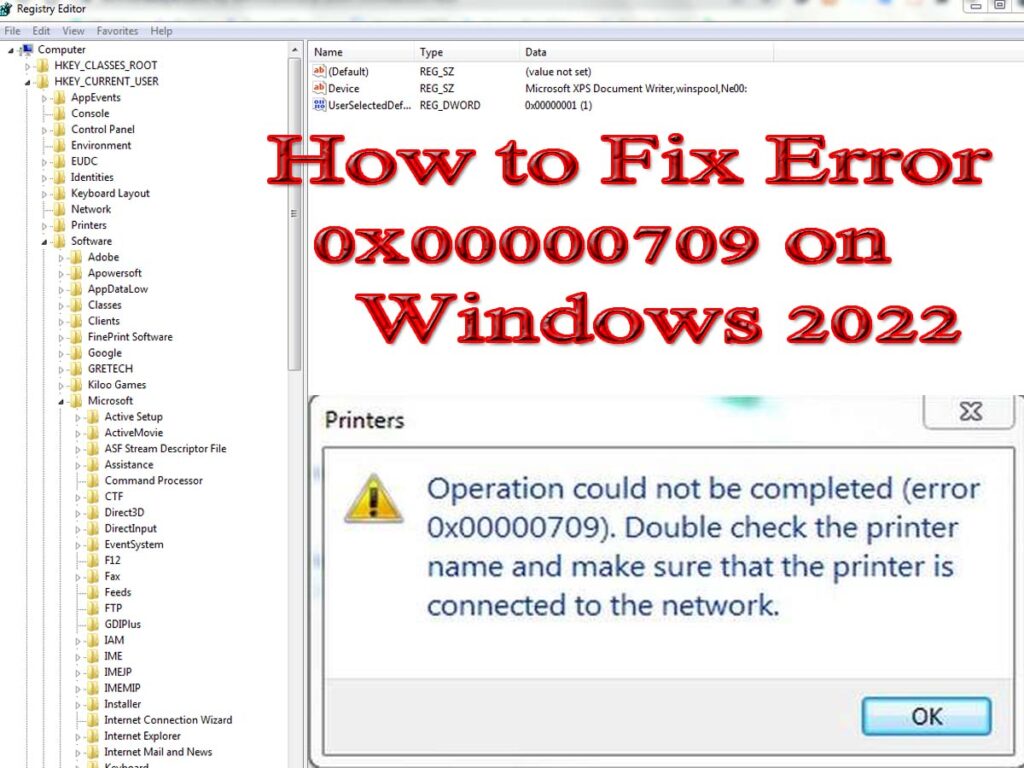
To set printer default Error 0x00000709 occurred and you cannot continue your work until you Fix Error 0x00000709, this situation occurs because of a glitch that happens within the registry settings within your Windows. The registry keys prioritize the earlier printer driver that was installed in your computer because the default one and forestall now you are setting the presently installed driver or new printer driver as default.
It’s a standard prevalence in windows 7, 8and 10 working programs. For those who’ve encountered this error, don’t be troubled. Just doing a few tweaks of settings within the registry and in settings will treat the state of affairs. Now, let’s start to Fix Error 0x00000709 on your Windows.
How to Fix Error 0x00000709 on Windows 2025
Below are the three methods are given to Fix Error 0x00000709 that will work for you on all windows operating systems. The most authentic method is the registry method that you can adopt with easy steps but you must keep a backup of your windows first before going to these steps.
How to set the printer as the default printer on Windows OS?
- Click on the windows icon on the start button and open the devices and printer.
- Now, select your installed printer and right-click on that printer.
- Choose the option “Set as Default” from the opening options.
- You have set the default printer successfully, if your printer does not set default and you receive the error, go to the next step below.
Technique 1: Troubleshooting the printer
Windows provides a tool to identify and correct the errors of hardware and software. Sometimes troubleshooting sets the issue solved, so first of all, we will try to troubleshoot the printer that is not going to be set as the default printer and try to Fix Error 0x00000709.
- Click on the windows icon on the start button and open the devices and printer.
- Now, select your installed printer and right-click on that printer.
- Choose the option “Troubleshoot” from the opening options.
- Your windows will diagnose the problem that is facing your hardware device. It will auto try to solve the issue and if not solved it will tell you the error detailed and steps to do. If your error of printer is not set as default solved, then go to the below method of registry updations of your windows.
Technique 2: Modification of Windows Registry settings
If the above troubleshooting tactic didn’t work, an attempt via the registry changes the method to Fix Error 0x00000709. Remember that altering and changing the registry is for superior customersand will hurt your system if executed in a mistaken manner. That is why we suggest that you take a backup of your windows and registry so that ought to issues not work as anticipated, you possibly can roll again to your beforehand working system.


- Concurrently Press on windows Key + R to open the Run Dialogue Window box.
- Now, type “Regedit” and then hit Enter button to open the windows registry.
- Click Yes and run as administrator to proceed with the process.
- The Windows registry page will be opened as you can see in the above image.
- Click and expand “HKEY_CURRENT_USER” by clicking on it.
- Now, choose and expand the folder of “SOFTWARE“.
- Now, click and expand “Microsoft”.
- Click and expand “Windows NT”.
- Now expand “Current version”.
- Now you will see the folder “Windows”.
- Now, you will have to right-click on the Windows folder and choose ‘Permissions’ from the appearing options.
- When permissions windows appear, there you will add an “Everyone” user with all permissions. To add a new user click on the button of “Add>Advance>and then on ‘Find Now”
- Now, search “Everyone” and click the Ok button until you come back to the permissions windows page.
- Check mark allow on the page to give full permission authority to the device and click Apply and then Ok button.
- Now, Restart your computer.
- Now, go to the device and set it as the default printer. This time it will be worked.
Technique 3: Third-Party Software Program
The above registry editing method will be worked for 100 percent to Fix Error 0x00000709 for all users and windows. If you don’t want to update the registry then you may use third-party software. You also can use proprietary or free software programs to repair your windows registry keys if they’re corrupted like the above error and you can Fix Error 0x00000709 using third-party software. Once more, earlier than you proceed, ensure you have a backup copy of your Home windows registry and extra ideally, create a system restore level.
An instance of a third-party instrument you should utilize to restore registry keys is Reimage Repair which has the power to carry out a deep scan of your programs and restore corrupt registry records data.
As soon as Launched, the method of repairing your PC takes an easy click on of a button and all it’s important to do is repair yourself some espresso because the software program does the exhausting job. The one downside is the prolonged length it takes to scan the registry and system to fix any registry error and to Fix Error 0x00000709. Nonetheless, as soon as executed, your PC might be again too regular and also you will be capable of setting your printer because of the default one.
Conclusions:
You have Fix Error 0x00000709 on your computer that is not set as the default of your printer and as all the time, your suggestions are most welcome below in the comments. Be happy to interact with us within the remark part whether or not you succeeded in fixing the issue or not, we will be glad to offer extra assistance to you in this regard.
You May Also Join Us On:
- You can Join Our Facebook Page for Daily Updates:
- Follow Us on Google News to get Daily Updates:
- Follow Us on Instagram for daily Updates:
- Follow Us on Pinterest to get daily Updates:
- Join Us on Twitter to get daily Updates:
You may also like:
- 10 best seo audit tools
- 10 essential best wordpress plugins that every website should have
- 750 prize bond list 2025 a complete guide to checking results and winning big
- 7 affordable seo services
- 9 best seo wordpress plugins must have everyone
- add css blogger blog
- adding meta tags to website
- advanced tips for instant indexing within hours and ranking
- ai for food bloggers