
How to Fix Windows 11 Installation Error, This PC Can’t Run Windows 11.
This PC Can’t Run Windows 11, this is the error that is facing most users when they try to install windows 11 in their system. This error occurs when your system is not meet the Windows 11 requirements. TPM 2.0 and Secure Boot are the must requirement for installing windows 11 in the system.
How to Fix Windows 11 Installation Error, This PC Can’t Run Windows 11
But if your system is not meet these requirements, then you have to face this error and you got disappointed. But remember you may fix them for installing windows 11 and may install windows 11 in any system whether it meets or not the requirements. But also remember, by doing this you may not facilitate the full functions of Windows 11.
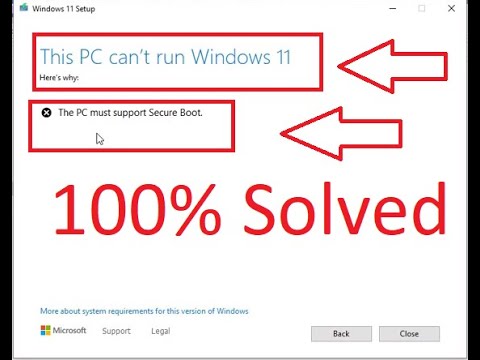
We provide here the details of installing windows 11 by fixing the error. We have to Download two files to fix this error. One is the Windows 11 ISO file and the second is to fix these problems. If you have already Windows 11 ISO file then skip this and Download the second file only. There are two files available with two different procedures. Download any of them according to your installation procedure. So, let’s fix This PC Can’t Run Windows 11 in two ways.
Method one:
How to Install fresh Windows 11 in your system?
If you want to install windows 11 as a fresh copy in your system then you have to make a bootable USB, for this. This installation will delete all your previous windows files and your documents files. Kindly keep a backup of your data before installing fresh windows 11 in the system.
You have to Download the Windows 11 ISO file and the second 400MB extra file that will be pasted into the source folder of windows setup. This bypass file will eliminate the windows 11 installation error and you may easily install windows 11 in any version of the system. Watch these tutorials carefully and follow the steps described in the tutorial. See the full video tutorial to upgrade the current version of windows to windows 11.
Below is the first tutorial, a fresh copy of windows 11 installed while windows 11 is upgraded in the second tutorial. Watch them, install windows 11 and enjoy.
- To install windows 11 in your system, make a windows 11 bootable USB. Learn more about how to make windows 11 USB bootable here.
- Extract the bypass file and paste it into the source folder of the USB bootable drive.
- Restart your system and boot from USB.
- Do settings like windows 10 installation. Your windows 11 will be installed normally.
Watch Full Tutorial


How to Fix Windows 11 Installation Error, This PC Can’t Run Windows 11
Method Two:
Upgrade your Previous Windows into Windows 11.
First of all, if you want to upgrade your existing and current version of windows to windows 11, Download the Windows 11 ISO file and second Download a small file of 73kb and paste this small file into the source folder of the windows 11 setup folder to fix This PC Can’t Run Windows 11.
In this method, there is no need to make a bootable USB of Windows 11. Just click on the setup.exe file of windows 11 which had already Download, your installation will be started and be completed after two to three times of restarting your system. See the full tutorial to install windows 11 on your PC. So, let’s start and Download these files.
Windows 11 ISO
Bypass File for Upgrade the previous windows
- Download the above files one for windows 11 ISO and the second bypass file to fix This PC Can’t Run Windows 11.
- Extract the Windows ISO file into Drive D.
- Extract the bypass file and paste it into the source folder of extracted windows 11 ISO file.
- Now, click on the setup.exe file, your Windows 11 installation will be started.
- Keep your files and upgrade any windows to windows 11.
Watch Full Tutorial
How to Fix Windows 11 Installation Error “This PC Must support Secure Boot” and “This PC Must support TPM 2.0”
After installing windows 11 in your system and fixing the error This PC Can’t Run Windows 11, don’t forget to activate it. Download the Windows 11 activator and activate your windows 11 and enjoy the new generation of windows. Click the below post to activate windows 11. If you like this post don’t forget to like and comment.
You may also like to visit:
- blockchain wallet
- buy usdt instead of btc
- cryptocurrency tips for beginners
- cryptocurrency trading
- digital wallet visa
- down payment assistance
- how to become an s corporation in the usa
- how to get an amazon resale certificate
- how to get your amazon resale certificate for us residents
- how to pay off debt fast
- invest your money
- money market fund

