How to install WordPress in XAMPP as a local server: Best Review 2025
How to install WordPress in the local server using XAMPP
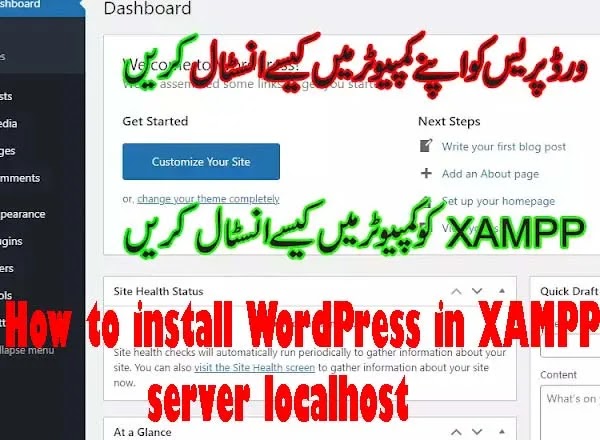
Installing WordPress on the local server using XAMPP and Installing WordPress locally on a Windows or Mac computer is considered a good idea for bigger learners of WordPress.
You will learn the full setup to install WordPress in XAMPP on a local server on your computer. XAMPP installed in the local computer will make the environment to develop the website without any hosting and domain online.
Why you install WordPress in XAMPP?
Installing WordPress in the local server using XAMP and Installing WordPress locally on a Windows or Mac computer is considered a good idea for bigger learners of WordPress. It is a testing base to install WordPress in localhost before publishing your website live. You can make and test it on the local server first and be avoiding the mistakes and errors that occur.
Installing WordPress is often the first step in any WordPress website development process. Your computer needs a server environment to act this entire as a live website. For this purpose, you need software that creates an environment called XAMPP.
XAMPP creates the environment for WordPress to create a website on the computer. So your first need is to install XAMP on your local machine. You may use and install WAMP, XAMPP, Local by Flywheeland Desktop Server on your computer or Mac machine.
These applications are great and make your system work as a local host by enabling its services. You can say that creating local WordPress sites is a common practice and job among developers and site owners. It allows you to test your WordPress website without creating an actual website on a live server or on the internet.
This is because; Local websites are only visible to you only on your computer but not others on the internet. You can try different WordPress themes and plugins, test their featuresand may learn the WordPress basics technique by doing it like this.


If you have already run a website on the internet, you may test a new plugin or theme in it before the final implementation of the Internet. You must see the list of best WordPress Security plugins here.
What are XAMPP and its functions?
XAMPP is a software application package that includes all things you need to set up a local server environment on your computer or Mac system. It enables your system to act as a local server for running websites on it. Because you need to set up web server software known as Apache, PHPand MySQL on your computer.
XAMPP runs these services on your computer and provides you with a full environment for web development. MySQL is a database management software application. It keeps and creates the databases of your websites from its sources. While Apache is an HTTP and HTTPS server for websites.
It enables the HTTP service on the local computer to work like website and accepts its command locally. These are required to run WordPress on the internet as well as on the local servers. Installing each of them separately is quite difficult for beginner learners. That is why XAMPP comes in.
XAMPP has these services in it only one software and you do not need to install these services separately. Just install XAMPP and enjoy making your system a local host server. XAMPP’s purpose is to build your website locally and then publish it online. It is available for Windows, Macand Linux-based computers in the market. Also, see the 10 best WordPress Backup plugins list here.
Installing WordPress on Localhost using Xampp full method
Before we get started with WordPress installation on your computer locally, you need to have Xampp running on your computer. You can Download Xampp here from its official website, installation of Xampp is very easy just click on the .exe file and allow it to run on your computer. You should follow the installation instructions like any other software installed on your PC.
Xampp utilizes ports 80 and 443 for its process. But can change it if you want and when you create the new ports for Xampp your localhost address will have to change also to include its ports.
How to install WordPress in XAMPP and XAMPP on the server localhost
- Download the latest WordPress application from its official website of wordpress.org. Type the URL in the browser or in the Google search engine and click the first result.
- Go to the website and Click on WordPress for Downloading the WordPress process.
- Now Download page will appear and click on Download WordPress dash version. It will appear in the latest version of WordPress.
- Download popup will appear to click to Download.
- Download the Xampp Bitnami application from its official website of apachefriends.org or search in the Google search engine and click on the first result to open its official website.
- Now the official website will appear, select your desired version according to your Windows and pc.
- Extract both software in WinZip or WinRAR. WordPress software will Download in WinRAR form so you have to need to extract it first. Remember that XAMPP has a seup.exe file for proper installation like any other software on your PC while WordPress is not like this. WordPress has only directories files and you not need to install this like seup.exe files. Click on the XAMPP setup file to install it in the Download folder.
- Ignore the first warning that appears while clicking on the XAMPP setup file.
- Now, you have to click on the button “Next” which will be started your installation process.
- Now the select component screen will appear, remain default selected and click next.
- Installation of Xampp Bitnami will start to copy files on your PC. The process is easy and simple. XAMPP Bitnami will install on your PC. Close the screen.
- Copy the WordPress Folder which had already been extracted and Paste it into the C://xampp/htdocs folder of the newly installed xampp application.
- Now, rename the WordPress folder name with your website name. Keep the folder name of your website name example swskh.org etc.
- Open xampp application from the desktop shortcut or from the program menu from the Start button.
- Now run Apache and MySQL services from the opened screen and then minimize it.
- Now, you have to open your installed browser and type localhost. Then press enter. A dashboard of localhost will appear. click on PhpMyAdmin for making a database for your website.
- Click on the tab “database” and then click on “create”, it will create the new database for your local website.
- Now type localhost/folder-name (which is renamed WordPress folder for the website in hdots folder) and press enter. The wordPress page will appear to click on the let’s go button.
- Type the name of the newly created database and the user name with the password. If the user name and password are not created type the default user name as “root” leave an empty password and click on submit.
- Now click on Run Installation.
- Name your website name and keep the WordPress username and password. Now, WordPress will install on your computer.
- Click on Login to WordPressand type your username and password.
- Congratulations you have installed WordPress locally successfully. Now you are ready to make and test your websites through the local computer.
You May Also Join Us On:
- You can Join Our Facebook Page for Daily Updates:
- Follow Us on Pinterest to get daily Updates:
- google sitelinks
- googles trending searches off
- google website ranking checker
- heading tags a good seo approach for articles
- high da free blog commenting sites
- how to add hostbreak domain with bloggers blogspot
- how to add meta tags in blogger for seo
- how to create pvc cards in coreldraw x7
- how to fix asus computer problems
- how to fix cant print on ms excel issue on windows
- how to fix envelope mode error of kyocera printers
- how to fix m1 url issues after
- how to get appear subdomain to google news
- how to install canon printer drivers on network
- how to install sql server in windows 7 with database application
- how to install wordpress in xampp
- how to make ghost of windows 7 and 10 in usb
- how to make youtube subscribe link
- how to solve couldnt fetch the page
- how to submit subdomain to search console google
- how to use categories and tags
- how to use topical authority
- hp laserjet 2300 printer driver
- improve microsoft teams tips and tricks
- inline related posts plugin