How to make bootable Window 11 USB: Best Guide 2025
make bootable Windows 11 USB and We will cover the topic of making bootable USBs in this full how to make tutorial. We will use two methods of making your windows bootable USB.
One is with the help of software and the second is with the help of the Windows command prompt. Let’s start…
How to make bootable Windows 11 USB
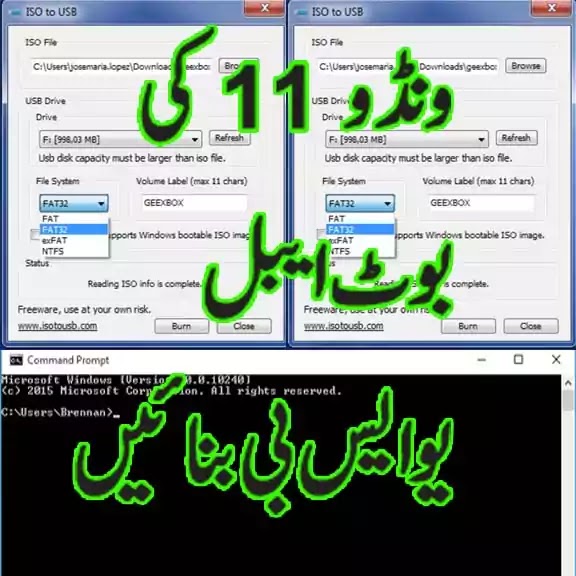
دوستوں آج اس ٹوٹوریل میں ہم ونڈوز 11 کی یو ایس بی بناءے گے وہ بھی بوٹ ایبل۔ یہاں ہم ونڈوز 11 کا نام ہی استعمال کریں گے لیکن یاد رکھیں کہ آپ اس طریقعے سے کسی بھی ونڈوز کی یو ایس بی بنا سکتے ہیں۔ اس طریقے سے آپ ونڈوز 7 ، ونڈوز 8 اور ونڈوز 10 کی بھی یو ایس بی بنا سکتے ہیں۔
یہاں ہم بوٹ ایبل یو ایس بی بنانے کے دو طریقے بتاے گے ایک سیدھا سافٹ ویر کے ذریعے ہے جو کہ بہت ہی آسان ہے جبکہ دوسرا طریقہ ونڈوز میں موجود کمانڈ پرامٹ کے ذریعے ہے۔ کمانڈ پرامٹ کے طریقے سے آپ کو بہت احتیاط سے کام لینا ہو گا کیونکہ تھوڑی سی بھی غلطی آپ کی ہارڈ ڈسک کو نقصان ہے ۔
- ISOtoUSB software
- CMD Command Prompt
Watch the Full Tutorial
make bootable Window 11 USB and We will cover the topic of making bootable USBs in this tutorial. We will use two methods of make bootable Window 11 USB using ISOtoUSB.
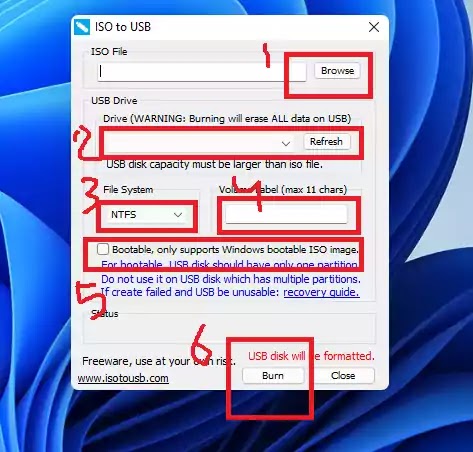
- First of all, Download the ISOtoUSB Software which is very small in kb and simple to use. Install it as normal software installation. Then, You just put your ISO file path in this software after inserting the USB. Click on the “Browse” button and select your ISO file to make a bootable Windows 11 USB.
- Your inserted flash drive will be shown if you insert it before opening the software. If you insert it after opening the software then click on the “Refresh” button to show your flash drive.
- Select your file system as “NTFS”
- Name the flash drive like “Windows 11”
- Tick on “Bootable only supports Windows bootable ISO image”
- At the final click on “Burn” and your bootable windows will be started. For more details watch the above tutorial to make bootable Windows 11 USB.
Method to make bootable Windows 11 USB using windows CMD command prompt.
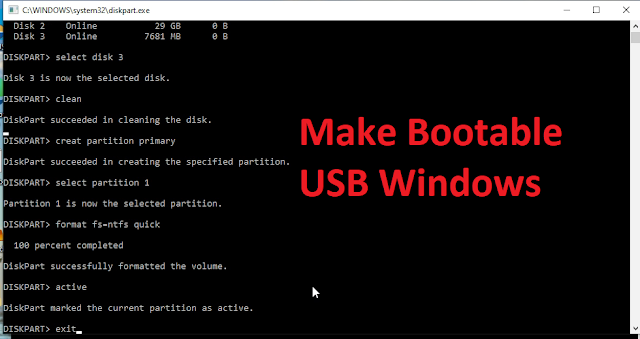
- Open the command prompt by searching CMD.
- Type the command “diskpart” and press enter.
- The new command prompt window will appear if you don’t run CMD as administrator. It means that if your run CMD as administrator, only one window will deal with this process. But if you don’t run with administrative then the second window of CMD will appear. Now, you have to write the below given commands in the second window of the CMD.
- Type in the newly opened command prompt “List Disk” to see all of your Hard Disks. This command will show you all your hard disks and flash drives attached to your system with serial numbers.
- Now, select your put flash drive or your USB by typing the command as “select disk (with your flash drive number given with total GB)” and press enter. Like “select disk 2”. Keep in mind that you should select the USB drive which you want to make bootable. If you select any other drive by mistake, it will erase all data available in that drive. So, select your own USB drive very carefully to make a bootable Windows 11 USB to install into your other computer.
- Now, you have to clean your drive and keep a backup if you have data in your flash drive because this will erase everything in your USB drive. To clean you have to Type the “Clean” command to clean your flash drive.
- Now, you have to create a primary partition in the flash drive. Type the command “create partition primary” and press enter to create a partition of your flash drive.
- Type “select partition 1″ and press enters key.
- Now, to format your disk partition, you have to type in the command “format fs=ntfs quick” and press enter key to format your drive.
- Now, type the command “active” and press enter.
- Now, the last but not least task is to type “exit” and press enter. by doing this, your 2nd window of the command prompt will be disappeared.
- Remember that the first window of the command prompt should not be closed. It should be kept open till the completion of the task.
- Now, copy the Widows file and paste them into the flash drive.
- After copying 100, it’s done successfully.
You May Also Join Us On:
- You can Join Our Facebook Page for Daily Updates:
- Follow Us on GoogleNews to get Daily Updates:
- Follow Us on Instagram for daily Updates:
- Follow Us on Pinterest to get daily Updates:
- Join Us on Twitter to get daily Updates:
You may also like to visit:


- 10 essential best wordpress plugins that every website should have
- 750 prize bond list a complete guide to checking results and winning big
- 7 affordable seo services
- 9 best seo wordpress plugins must have everyone
- add css blogger blog
- adding meta tags to website
- advanced tips for instant indexing within hours and ranking