
Icon Lists in WordPress: How Do I Add an Icon to My WordPress List?
Adding icons to lists in WordPress can enhance the visual appeal of your content and make it more engaging for your audience. Whether you are creating a bullet-point list or a numbered list, incorporating icons can help draw attention to key points and break up text for easier reading.
In this blog post, we’ll explore how to add icons to your WordPress lists, whether you are using the Gutenberg editor or a plugin like Font Awesome.
Why Add Icons to Lists?
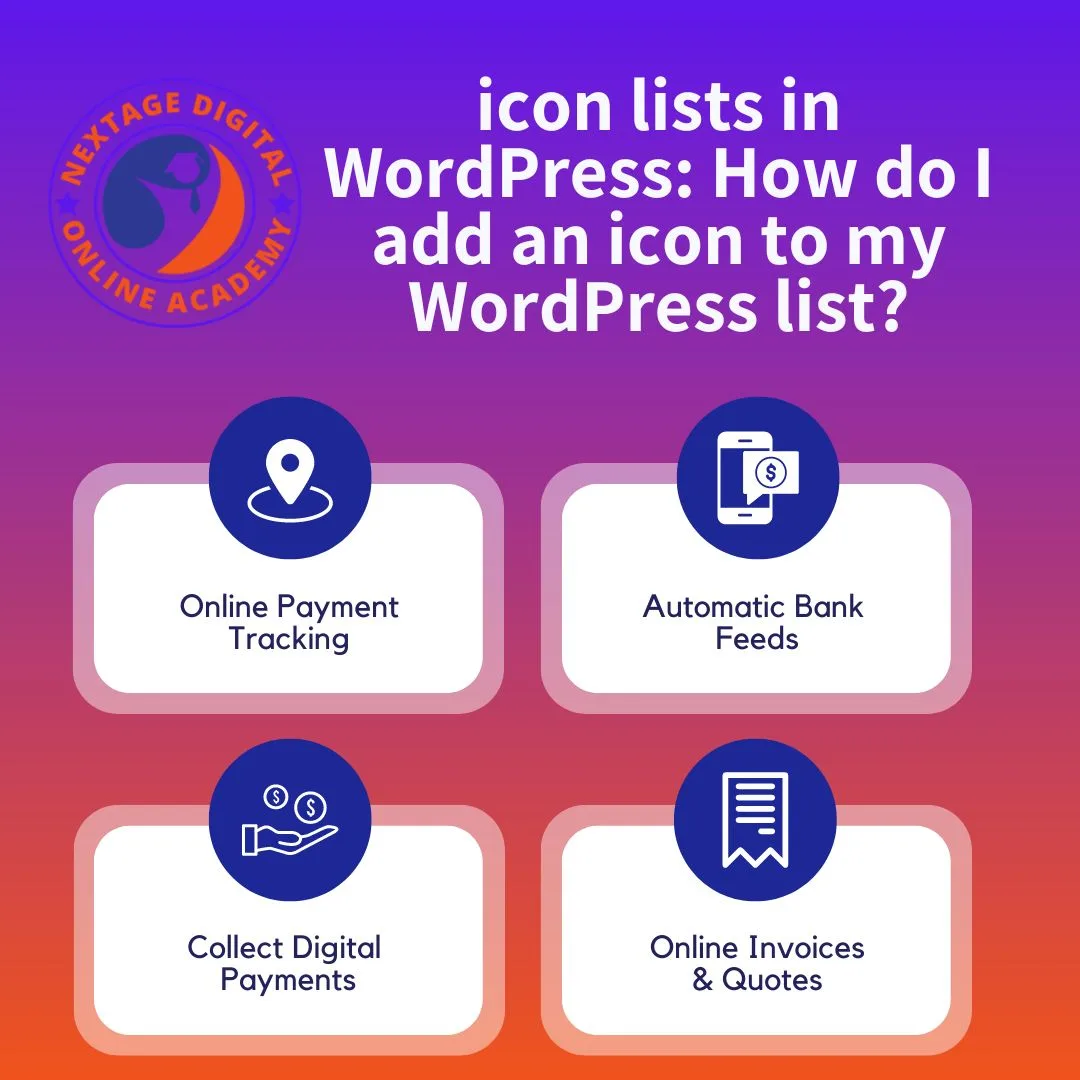
Visual Appeal:
Icons can make your lists more visually appealing and help them stand out on the page, increasing readability and engagement.
Highlight Key Points:
Icons can be used to highlight important or noteworthy items in your list, making them more prominent and easier to spot.
Enhance User Experience:
By incorporating icons into your lists, you can enhance the overall user experience and make your content more interactive and engaging.
How to Add Icons to Lists in WordPress
Method 1: Using the Gutenberg Editor
- Create a List Block:
- In the Gutenberg editor, create a new block and select the “List” block option.
- Add List Items:
- Enter your list items as you normally would, each on a new line.
- Select Icon Option:
- Click on the list item you want to add an icon to.
- In the block settings sidebar, look for the “Icon” option.
- Choose an Icon:
- Click on the icon selector to choose from a library of available icons.
- Select the icon that best represents the item in your list.
- Repeat for Each Item:
- Repeat the process for each item in your list, adding icons as desired.
Method 2: Using a Plugin like Font Awesome
- Install and Activate the Plugin:
- Go to the Plugins page in your WordPress dashboard.
- Search for “Font Awesome” and install the plugin.
- Insert Icon Shortcode:
- In your post or page editor, create a new list using HTML or the built-in list options.
- Insert the shortcode for the desired icon next to each list item. For example:
<i class="fa fa-check"></i> List item 1 <i class="fa fa-check"></i> List item 2
- Customize Icons:
- Customize the appearance of the icons using CSS if needed, such as changing the size or color.
- Preview and Publish:
- Preview your post or page to ensure the icons appear as expected.
- Once satisfied, publish or update your content to make the changes live.
Best Practices for Using Icon Lists in WordPress
Choose Relevant Icons:
- Select icons that are relevant to the content of your list items to provide visual cues and enhance understanding.
Maintain Consistency:
- Use a consistent style and size for your icons to create a cohesive look throughout your website.
Consider Accessibility:
- Ensure that your icons are accessible to all users, including those using screen readers. Use descriptive alt text for each icon to provide context.
Conclusion
Adding icons to lists in WordPress can help make your content more visually appealing and engaging for your audience. Whether you are using the Gutenberg editor or a plugin like Font Awesome, the process is relatively simple and can be done with just a few clicks. By following the steps outlined in this blog post and adhering to best practices, you can effectively incorporate icons into your lists and enhance the overall readability and usability of your WordPress website. Experiment with different icon styles and placements to find what works best for your contentand watch as your lists become more visually striking and interactive.


In this video, we added a new section to our website, focusing on the services we offer. Here’s a summary of what we did:
- Duplicating Existing Section:
- To save time, we duplicated an existing section and modified it to suit our needs for the services section.
- Adjusting Layout:
- Changed the section title to “What I Can Do” to reflect the content.
- Removed unnecessary columns and content from the duplicated section.
- Styling the Section:
- Adjusted the background color and layout of the section to match the overall design theme.
- Added an image (a transparent businessman) to visually represent the services offered.
- Utilized icon boxes to list the services offered, including web design and development, SEO, application development, graphic design, marketingand video animation.
- Customized the appearance of the icon boxes, including colors and icons, to match the design aesthetic of the website.
- Adding Visual Elements:
- Inserted a divider with a white color to visually separate the “What I Can Do” section from the rest of the content.
- Adjusted the spacing and alignment of the divider to ensure it fits well within the layout.
- Final Touches:
- Made additional adjustments to ensure consistency in styling and layout throughout the section.
- Ensured that the section looks professional and visually appealing.
By adding this new section, we’ve effectively showcased the range of services we offer to potential clients or visitors to our website. In the next video, we’ll continue to enhance our website by adding more content and features. Stay tuned for further updatesand thank you for watching!
Join us on Social Media Platforms:
Argentina Vs France Final Live Fifa World Cup
Art Teacher Cv In Word
Assistant Product Manager Jobs In Faysal Bank
Aust Result By Name
Auto Insurance
Awkum Bs Admissions
Bacha Khan University Charsadda Bs Admission
Bahawalpur Medical And Dental College Jobs
Balochistan Board Class 8 Books In Pdf
Beautiful Facebook Bio Style



