
How to Setup Contact Form 7 on WordPress and Blogger Website
WordPress Contact Form 7 is a totally free and most popular WP plugin for creating your lead contact form and generating other forms. It’s easy to apply and integrate and deploy. Contact forms 7 are also used with the themes that have integrated contact forms as they do not offer customized and advanced options.
We in this blog will show you how you can use the Contact Form 7 plugin on your WordPress website. we will also talk about customizing your forms and emails.
How to Setup Contact Form 7 on WordPress and Blogger Website
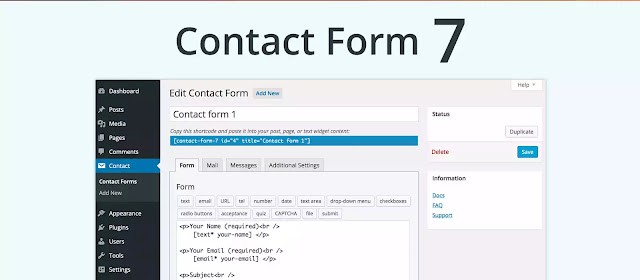
Contact Form 7 Features
- It is able to Customization options to fit your variable needs and satisfaction.
- It has a simple implementation and integration process with your WordPress website.
- It is helped you with just a few clicks to creat contact form of your own website.
Contact Form 7 installation on WordPress
Let’s get started to install Contact form 7 in the WordPress platform.
- First, you have to log in to the WordPress main Admin Dashboard.
- Go to Plugins sections.
- Now, add New then type in search “Contact Form 7”.
- When you found in the shown WP plugin list, you have to click to install button and then need to activate button to active plugin by clicking on it.
- Now, after installation click to Activate.
How to display a form on the contact page?
To display a form on your website page, you have to open Contact then Contact Forms at your WordPress dashboard.
A contact form is already available here as a default contact form for immediate use without making a new form. Default contact form name is Contact form 1 and now you can see its shortcode
Error: Contact form not found.
.Now Copy this shortcode and paste it on the contact page of your website.


How to Customize Contact Form 7 on Wordpress website?
- Download, install and activate the Contact form 7 in the WordPress dashboard.
- Go to the contact form 7 and Make a New Contact Form here. Click Add New.
- The tabs on the top of the text area have useful tags for customizing the email. However, you can insert any element of your own choice by inserting the proper tag.
- Now, you can add your drop-down menu to your contact form 7. You have to select the button and you can input the required information on the top text area. Now, click Insert Tag to add the element to the text of the form.
- Now, you have to move next to the body of the email to add format. Click the Mail tab to format the layout of the email.
- The last tab is to edit the Messages tab and you can customize the messages to show in several conditions.
- You have customization for the form is done. You can use this customized form on the contact page by pasting its shortcode.
How may you Set Up Contact Form 7 on the blog Blogger?
Watch Here Full Video Tutorial:
1. You may Set Up Contact Form 7 on the Blogger Sidebar.
- Open blogger.com and log in to your account with a Gmail account. If you are running multiple blogs on one Gmail account, you need to choose the desired blog from the list of blogger dashboards.
- Now you have to click on the Layout. Get a gadget of contact form.
- You can now click on Add your Gadget link on your main panel on the right side of dashboard. After that Clicking on it, you will bring you to a list of gadgets.
- Now, you will see Contact Form here. Just click to add this contact form 7 to your bloggers blog sidebar.
Note: If your want to show the contact form as a gadget, then you have done all things but if you want to show the contact form on a static page of a blogger named contact us, you have to do some extra things.
2. Set Up Contact Form 7 on the Contact Us Bloggers Static Page.
- First, you have to repeat the 1 to 4 steps above to insert contact form 7 gadget in blogger.
- After doing the 4 above steps, you need to play with the blogger template section. So, click on Theme from the left menu.
- Now, click on Customize and then Edit HTML.
- Press CRL F and Search for ]]></b:skin> and place the following code just before it.
div#ContactForm1 {display: none !important;
}- Now, click Save to retain the changes. After doing this, you will not see the Contact widget on your blog sidebar because the above code will hide the contact form gadget in the sidebar.
- Now, Go to Pages and click on the New page. Name this page contact us or do whatever you like.
- Now Download the below text file and copy the code and paste it into the HTML post view after removing everything in it. You have to move into HTML Editor first. Download the text coding file for contact form 7 here.
Now Finally, Click the Publish button. You have done all, That’s all.
You May Also Join Us On:
- You can Join Our Facebook Page for Daily Updates:
- Follow Us on Pinterest to get daily Updates:
You may also like:
- How to Use Google Trends for SEO Growth
- How to completely remove Footer area from bloggers template
- How Can You Share USB Printer and Network Printer?
- HTML to XML praser Blogger Script Code Download
- Network Sharing Error “Windows Cannot Access Your Shared Drive or Folder”
- Fix Excluded pages issues of Google Search Console
- How Can You Resolve My Computer not showing up in Network sharing issue?
- Best Local SEO Tools to Boost Local Search Rankings
- Google Search Console vs Bing Webmaster Tools: Which One Should You Use?
- How Internal Linking Can Elevate Your SEO Rankings and Conversion Rates
- What Are Featured Snippets optimization and How to Optimize in 2025?
- How to fix core web vitals in google page insight



Ready to drive targeted visitors to your Technohadayat Com site? This quick video explains how our AI works: https://www.youtube.com/watch?v=VOdZEKK52Rw