
How Can You Share USB Printer and Network Printer?
Share USB Printer and Network Printer is the simple process of windows wizard today. When your printer is shared by means of LAN or Native Space Community between two or extra computer systems, is named as community printer and community printing.
You might join the printer with the community within the following methods to resolve your printing issues.
How to Share USB Printer and Network Printer, driver in a computer and laptop.
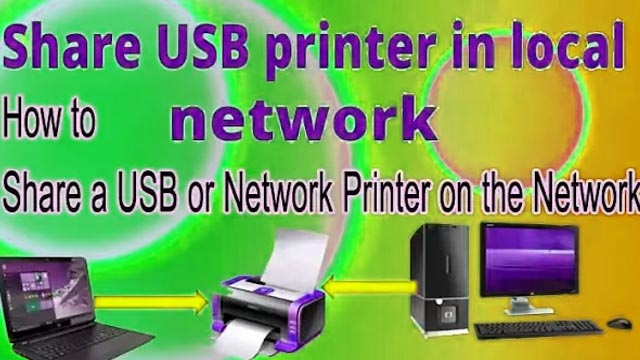
Share a USB Printer and a network printer feel some trouble to some youngsters. When a printer is shared through LAN or Local Area Network between two or more computers, is known as a network printer and network printing. You may connect the printer to the network in the following ways.
- Direct Method By using the Printer Ethernet Port
- Indirect Method by using the USB printer installed on one computer.
Here we will learn about both methods of sharing the direct method with a printer ethernet Port and the indirect method with a USB port to install the printer on the network. If your printer has an Ethernet port and you have to install an Ethernet port printer on the network, the difference is in both is the port. Make your Microsoft excel more advanced by installing Kutool for excel with all the latest versions full.
Why do we connect or Share a USB Printer?
When your printing resources are limiting or thinking of no need of having a printer on a specific system. But you want to share a network printer on your system. Assume your office has only one Share a USB Printer and more than 5 computers.
You want to share the printer on every computer. So, you will install a printer on one computer. Learn here how to install a USB printer driver on any windows. You will properly install it.
What are the printer sharing settings on both computers for Share a USB Printer?
You have to do the settings on the first computer. You have to do two settings on the computer one for sharing on the network. Do the Printer share settings and security allow settings? There is no need for printer settings on a second computer.


You have to connect your second computer to the network and will show each other. You may do printer settings after installing the network printer. You will do some basic sharing printer settings on computer one. See the full article if your computer not showing on the network.
- So just right-click on your network and then open the Network and internet settings.
- Click on sharing option simple.
- Here you will get some options like private network, public network and guest network.
- Make sure to checkmark all of these. If you already shared your computer you don’t need to do this.
- Now, simply right-click on the printer you want to share then click on printer properties.
- Checkmarks on share this printer option.
- Now, after this simply clicks on apply and ok button.
- Now, click on the security tab of the opened windows.
- Now, click on Advance settings at the below bottom.
- Add “everyone” user here or simply the computer’s two user names.
- Allow the user full control by a checkmark.
- Click applies and OK button to take effects.
How can share a USB printer on the network?
Share a USB Printer are a printers that have a USB port for communicating and connecting with computers. You can easily share your printer on the network between two or more computers.
I will try to make it simple. So, let’s start the procedure and remember this action will be done on the second computer. You may also like to know How to install the HP Printer Drivers in Windows 7 and 10 with or without CD and driver?
- You should have two computers that are connected to each other on LAN already. If you don’t connect computers to each other then first learn here, how to connect two or more computers on LAN for sharing files and folders.
- USB printer should be installed on one computer already and functioning well on that system. If you don’t install your printer driver, See the article on installing the printers on a computer here and install it first. So, I called it the primary computer which is also computer one where I installed my printer driver and computer two which is connected through LAN.
- So after this, you need to share your printer and for this, you go to the network. So, Type in the Windows search bar network and open it.
- See the computer name here and double-click to open it. This is the computer where you installed the Share a USB Printer. To see the computer name, go to my computer properties on computer one and see below the computer name.
- It will show your shared files, folders, drives and printers.
- If your printer is not available there, then do the refresh every time it will show your printer.
- I can see the shared printer is available here.
- Simply right-click on that printer and click on connect.
- That’s right now, your printer is ready to use for the network.
Share a USB Printer
If the process does not complete successfully and provides the error, you have to solve the error first. These errors may be the following.
The printer driver is not available in Windows, so install the same driver on the second computer first.
If you received these error codes like “. You have to solve these errors first. Click on these errors to solve if you received anyone of them. Fix network Printer Share Problems like “Windows Cannot Connect to the Printer.”
Windows provide a wizard also to share network printer on the network. Click here to share network printers through network wizard.
For more Interested Posts Check Below
- Top 10 Best WordPress Backup Plugins Free Get from Technohadayat
- Best Blogging SEO Tools for Beginners in 2025
- HTML to XML praser Blogger Script Code Download
- How Can You Resolve My Computer not showing up in Network sharing issue?
You May Also Join Us On Social Media:
- Follow Us on Pinterest to get daily Updates:
- You can Join Our Facebook Page for Daily Updates:

