
Network Sharing Error “Windows Cannot Access Your Shared Drive or Folder”
Windows Cannot Access Your Shared Drive or Folder: Now the question is How to fix these types of errors like ‘Network Error-Windows Cannot Access \ Shared Drive’?
“Windows Cannot Access Your Network Computer Name” is a network-related error and problem of your Local Area Network or Connection and this error occurred due to the network permission and network drivers installed in your system going corrupted or crash. Sometimes it will occur due to Windows Firewall and Windows Registry too. You may get the following message if networking is not going too properly.
Network Sharing Error “Windows Cannot Access Your Shared Drive or Folder”
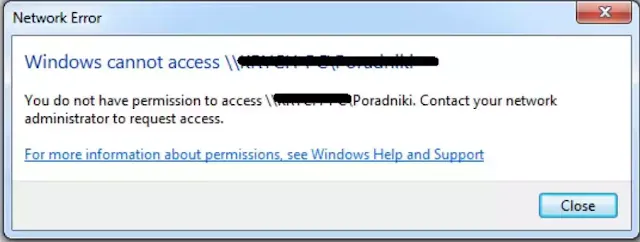
Windows Cannot Access
- You have no permission to access this network (PC)
- “Windows Cannot Access \ Shared Drive”
- Shared Folder or Drive not opening
- PC Not Showing in Network Place.
- PC Network Path was not found.
- Windows Cannot Access
These Windows Cannot Access Your Shared Drive or Folder errors occur due to a lack of or improper networking connection. Sometimes the windows security blocked these services to run networks sharing each other. You have to see every aspect and reason behind this error. There is the list below of reasons which may occur mostly in networking sharing problems. Let s see and examine every setting and possible reasons to solve this error and problem.
- Check if Network Driver got corrupted for the error of Windows Cannot Access?
- Check LAN Connection and LAN Sharing Setting is done correctly.
- Check shared Drive or Folder Security Setting is done properly.
- Check TCP/IP NetBIOS setting is configured correctly.
- Check if Windows Registry got corrupted?
- Check if Windows Services Stopped or Running?
- Check if Windows Firewall blocked the network client?
Network Sharing Error “Windows Cannot Access Your Shared Drive or Folder”
Let’s check and do these settings one by one. Keep these steps in your mind when this error occurred in your network. Also, get and install Kutool for Excel in your system to decrease the excel burden here.
Check if Network Driver got corrupted?
To fix Windows Cannot Access Your Shared Drive or Folder error, you need to check your network driver if got currupted or not.
Network drivers are necessary to connect your computer to any network. If something bad happens to your network drivers then it gives you errors of networking related. So it is the best choice to upgrade your network adapter driver to function properly. To find the accurate driver of your network adapter, if you don’t know, go to the device manager/properties/details tab/select compatible ID in the property. Copy the ID and paste it into Google Chrome to search for the exact driver name. Get and upgrade the driver to solve the error of Windows Cannot Access completely.
Check LAN Connection and LAN Sharing Setting is done correctly
If your issue of Windows Cannot Access Your Shared Drive or Folder error is not resolved, second you can check LAN connection setting whether got wrong.


- This is the main and basic setting for network sharing and by setting these, you may avoid the error of Windows Cannot Access. You have to do these basic settings in the “Network and Sharing Center” by doing appropriate settings. These settings are basic for all errors in networking. So make sure you have done these entire settings first. Do these settings in “Control PanelAll Control Panel ItemsNetwork and Sharing CenterAdvanced sharing settings”.
- Make the same network of all computers on the same network whether public or private network. Do the same settings on all computers to access correctly.
- You have to check or change the workgroup settings also, to see and check, you can go on your ‘Computer properties’ and click on the “Change setting” button under the “Computer name, domainand workgroup settings”, tab and then click on “Change” to change the workgroup settings.
Check shared Drive or Folder Security Setting is done properly
If your problem still exist of the Windows Cannot Access Your Shared Drive or Folder error, you may go to the next step to check your shared drive and folder security settings.
- 70% solution of these errors is solved at this point. Because many network technicians forgot to share folder security settings. So, you have to do these settings of the shared drive or folder to fix Windows Cannot Access Your Shared Drive or Folder error.
- First, you have to need to share a drive, fileor folder. Create a folder or select a drive that you wanted to share and then select its ‘Properties by right-clicking on the folder or drive. In the properties opened window, you have to select the “Sharing” tab and then click on the “Advanced Sharing” button.
- Now, tick on the “Share this folder” button. Then, click on the “Permission” button and give the “Everyone” user Full Control. Means Allowing full control to the user “Everyone” in the security Tab of the shared folder. Set the shared folder with everyone user in the shared folder’s advanced settings and give permission to read and write.
- If the user “Everyone” is not found then you have to create it by going security tab/Edit/Add/Advanced/Find now/Everyone. In this process there will be 3 to 4 popups will be opened.
Check TCP/IP NetBIOS setting is configured correctly to solve Windows Cannot Access
You can also check TCP and IP settings which you configured to fix Windows Cannot Access Your Shared Drive or Folder error on your network sharing.
- ‘TCP/IP NetBIOS’ is also called “NetBT”. It’s a network protocol based on the session layer in the OSI modelwhich allows the applications on separate computers to communicate with other computers over a local area network or LAN. Using the NetBIOS over TCP/IP (NetBT) protocols on the network means sharing files, printersand logging on to the network. If the NetBT service is not enabled, some of these functions might not be available to you and these networking errors may occur occasionally. Let’s do these settings.
- Search the “services.msc” on the Windows Starts Menu to open the ‘Windows Services’ or simply type Services in the start menu search bar. Now on the Services window, search for a service named “TCP/IP NetBIOS Helper” and double-click on it. Then on the pop-up general tab, change the “Startup typesetting” or any other protocol to the ‘Automatic’.
- After enabling the TCP/IP Net Bios Helperprotocol in Services, go to the network sharing center and IPV4 versions properties. Select the Advanced tab below here and then WINS tab, now select enable net bios over TCP/IP.
- Now, search the “Regedit” on Starts Menu. When it opened, go to the following location one by one or paste it into the address bar. “HKEY_LOCAL_MACHINESOFTWAREMicrosoftMSLicensing” into the database. Now expand the ‘MSLicensing’ folder and then delete both of the “HardwareID” and “Store” subfolders listed under the expansion. Make sure you only delete sub-folders and not the whole MSLicensing.
Check if Windows Registry got corrupted to solve Windows Cannot Access?
There are 3 types of registries that may be corrupted due to this error Windows Cannot Access Your Shared Drive or Folder occurred. Let’s check one by one to fix Windows Cannot Access Your Shared Drive or Folder. One is discussed earlier and next one is below as listed.
- Enable DWord Value in Registry. To enable DWord value, open the Run command and type Regeditand press enter. Now go to “HKEY_LOCAL_MACHINE SYSTEM CurrentControlSet ServicesLanMan WorkstationParameters” Open the Dword value of “AllowInsecureGuestAuth” and write 1 instead of 0. If this Dword is not available then make it by right click and new then selecting the dword value. Save and open the network again.
- Enter the correct System Registry in the folder of the system by going to “HKEY_LOCAL_MACHINESOFTWAREMicrosoftWindowsCurrentVersionpoliciessystem”location and then create a new DWORD Value named LocalAccountTokenFilterPolicyand then click Modify to edit the registry and type the key “1” under the ‘Value data’. Instead of the “0” value.
Check if Windows Services Stopped or Running?
Sometimes windows services had stopped by starting other services which result the error of the Windows Cannot Access Your Shared Drive or Folder. So you have to check whether these services are running or stopped. For this, Open the services by running the command and do automatic for all below. Make sure all these services were running automatically.
- DHCP
- SSDP Discovery
- UPnP Device Host property
- Function Discovery Host
- Function Discovery resource’s
- Server
- Workstation
- Computer Browser
Check if Windows Firewall blocked the network client?
You may also check your windows firewall checking to fix Windows Cannot Access Your Shared Drive or Folder error on your shared network to access your files and folders.
- Check your system’s local security if blocked these network sharing or not. To do so, type secpol.msc in the start search bar and open it. Now check in “Local Policies/Security Optionsand click on” network security Lan Manager Authentication Level” is set by “Send LM & NTLMv2” if not, you have to select this version to function properly.
- Add the client credentials in the control panel and select credential manager or go to user and then credential manager and type client IP with username and password of client PC which you want to access. Sometimes changing the PC password, you will not able to access the client’s PC, so if already saved credentials, now you have to remove these.
- Checkmark on the option of SMB 1.0 P Protocole by clicking in Start>Control Panel>Programs and Features then Click on “Turn Windows features on or off”. You must Scroll down to SMB1.0/CIFS File Sharing Support and Tick the SMB1.0/CIFS Client. And Untick on SMB1.0/CIFS Server.
Conclusions
Hope after diagnosing and applying our above guide to fix Windows Cannot Access Your Shared Drive or Folder error on your network, your issue of the Windows Cannot Access Your Shared Drive or Folder resolved. if your issue Windows Cannot Access Your Shared Drive or Folder, still exist you can contact with us to resolve and can get our services to resolve your network sharing issue at any time.
Get and install Network Drivers from here to fix Windows Cannot Access Your Shared Drive or Folder.
You May Also Join Us On:
- You can Join Our Facebook Page for Daily Updates:
- Follow Us on Google News to get Daily Updates:
- Follow Us on Instagram for daily Updates:
- Follow Us on Pinterest to get daily Updates:
- Join Us on Twitter to get daily Updates:
You may also like:
- online bus reservation system php source code
- our projects
- pageranks importance for seo
- pogo sticking how to prevent
- power of google keywords ranking tools
- reasons why your blog post is not ranking on google
- recover deleted web pages
- resolve microsoft office problems
- search console google fast index blogger post in a minute
- semrush pricing
- seo for publishers

